Inline Carousel with CleverTap
This guide walks you through creating an Inline Carousel in the Digia Engage Dashboard, connecting it to CleverTap Native Display, and testing it inside an app slot.
By the end, you should have:
- an Inline Carousel campaign saved or active in Digia Engage
- a slot key that matches the inline slot added by your app team
- a CleverTap Native Display campaign that sends the Digia campaign key
- a test device where you can verify the carousel renders inside the right app section
Inline campaigns are different from Nudges, Guides, and Surveys because they do not appear as an overlay. They render inside a developer-defined slot in your app layout. Use an Inline Carousel when you want swipeable content inside the app, such as:
- a homepage offer carousel
- product discovery cards
- feature banners inside a feed
- limited-time merchandising slots
Prefer a quick visual walkthrough first? Watch Creating Native Inline Content Experiences.
Before You Start
Make sure you have:
- Access to the correct Digia Engage project.
- Access to the matching CleverTap project.
- Your app must already be integrated with Digia Engage and CleverTap. Share the CleverTap developer integration guide with your app team if this setup is not complete yet.
- Your app team must have added a
DigiaSlotorDigiaSlotViewwhere the carousel should render. - The available slot key shared by your app team.
- The audience and trigger rules decided in CleverTap.
- The carousel image URLs and tap actions ready.
- A test profile or test segment in CleverTap so you can verify the campaign before launch.
Slot keys
A slot key is the name your app team gives to a place in the app layout where Inline content can render. The slot key in Digia must match the app implementation exactly.
For example, your app team might share:
| Slot key | Where it appears |
|---|---|
home_carousel | Homepage hero carousel area |
product_offers | Product detail offer slot |
checkout_banner | Checkout reminder banner |
For developer setup details, see Setting Up Inline Widgets. After slots are synced, review usable pages and slots in Component Registry before building the campaign.
For this walkthrough, we will use:
| Field | Value |
|---|---|
| Campaign name | Homepage Carousel Inline - CleverTap |
| Campaign key | homepage_carousel_inline_clevertap |
| Slot key | home_carousel |
| Variables | None |
Create an Inline Carousel Campaign
Go to Campaigns and choose New Campaign.
Use a name that your team can recognize later:
Homepage Carousel Inline - CleverTap
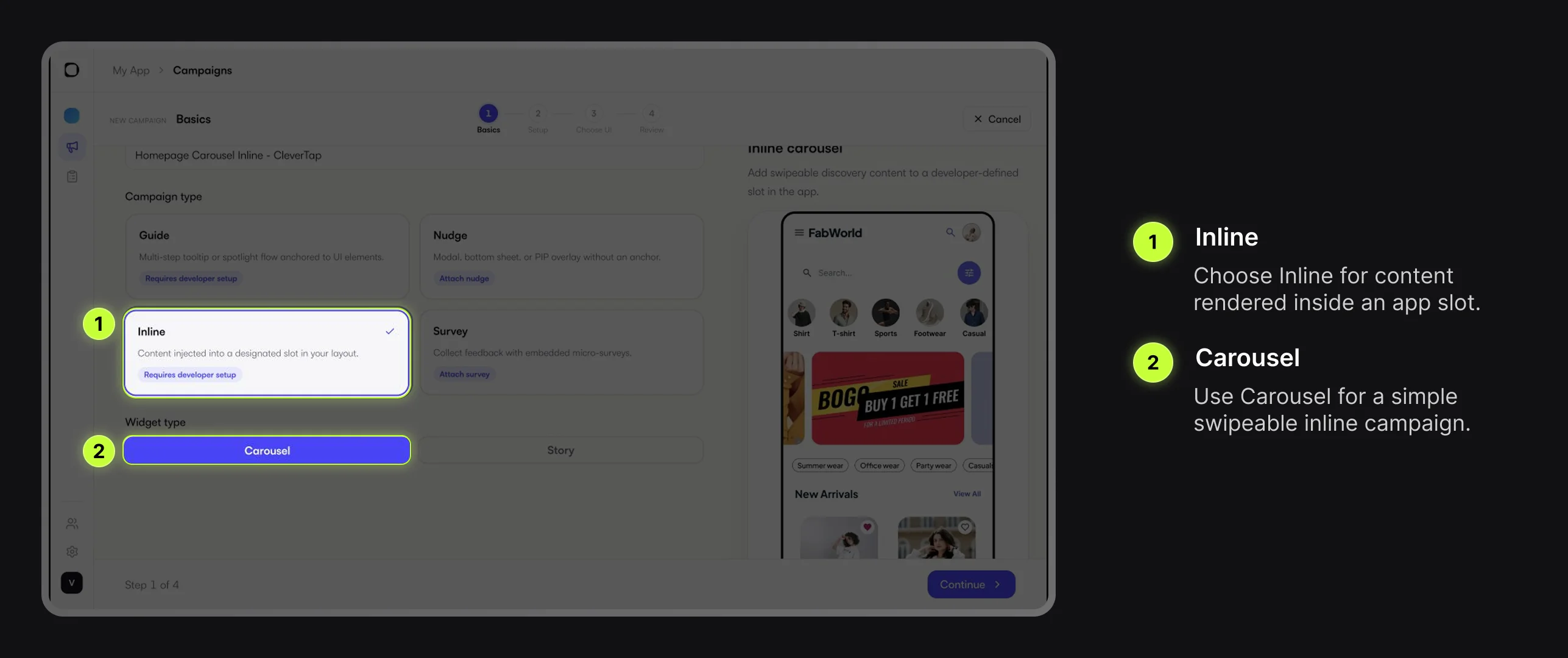
On the Basics step, select Inline and choose Carousel as the widget type.
Confirm Setup Values
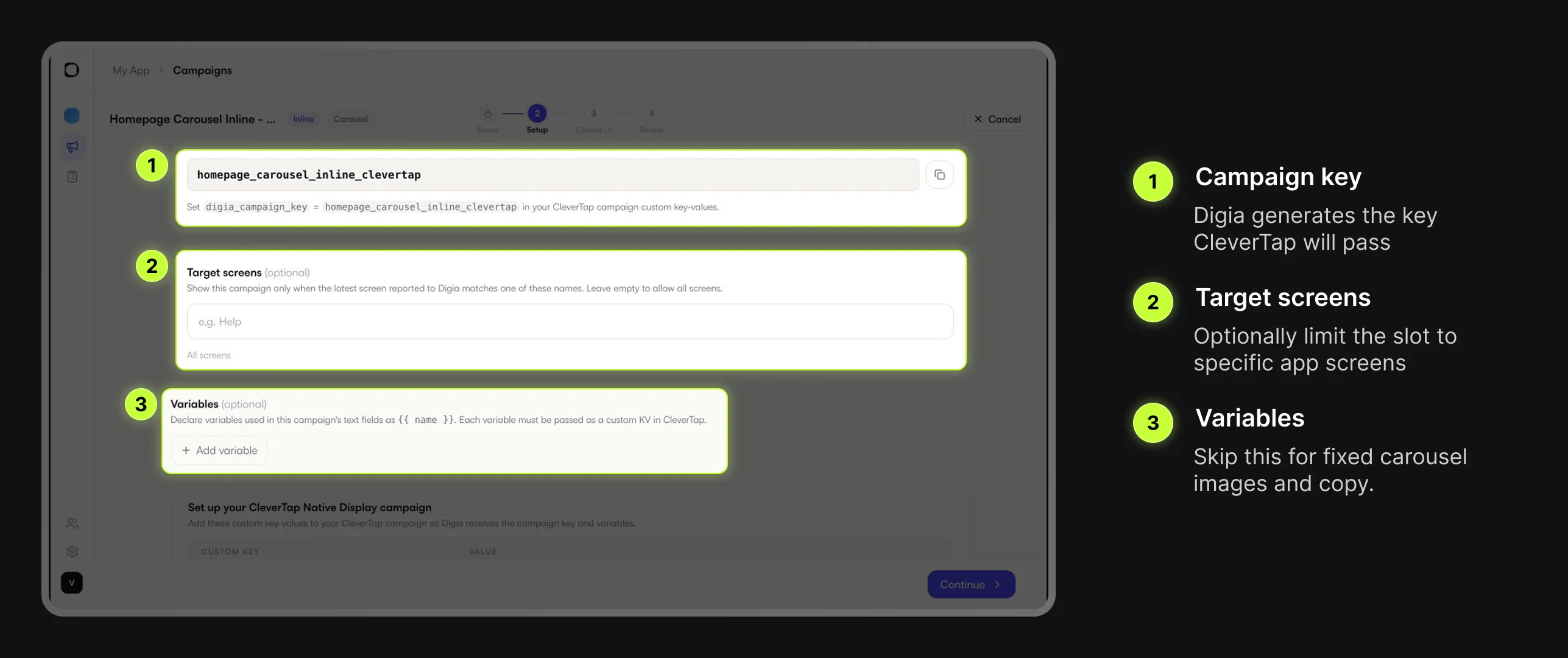
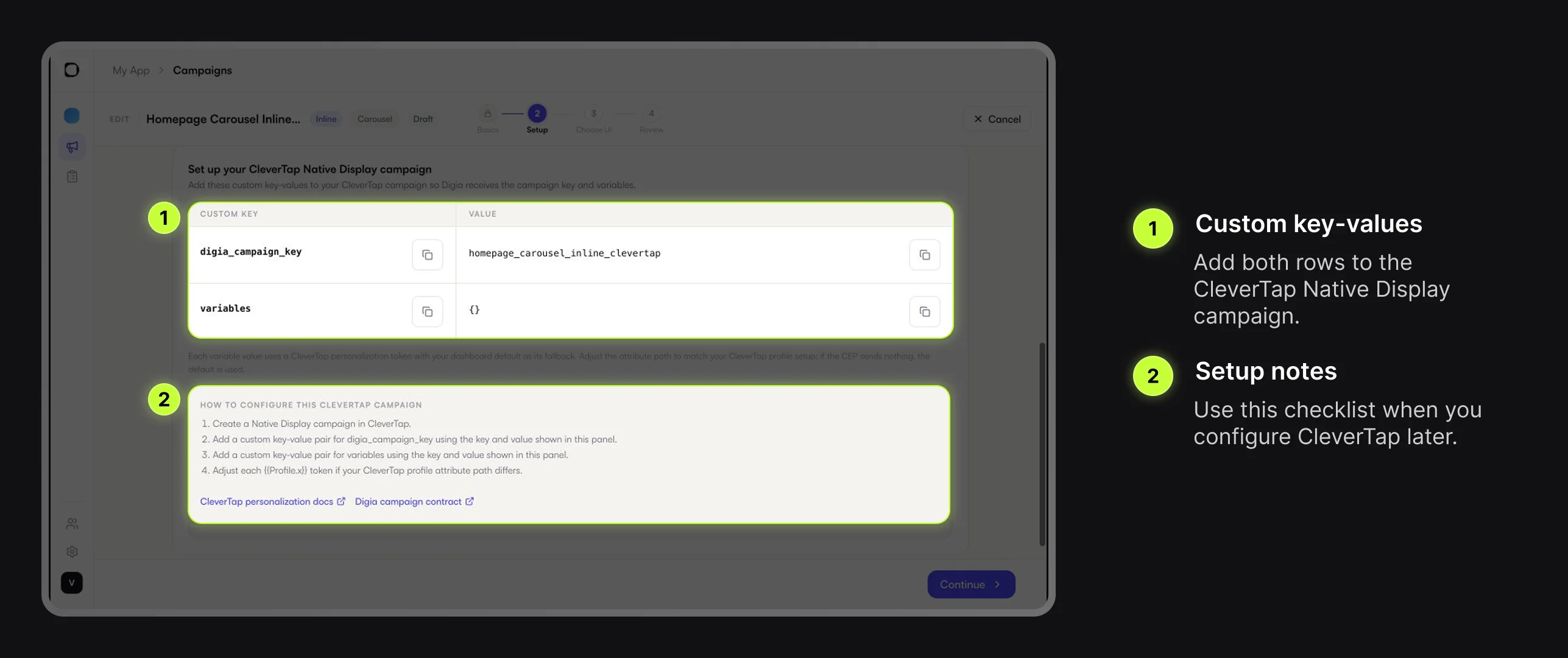
The Setup step shows the campaign key, optional screen targeting, optional variables, and the CleverTap Native Display handoff section.
Use Target screens only if the carousel should render on specific app screens. Leave it empty when the slot key is enough to decide where the carousel appears.
Variables are optional. For this carousel example, keep variables empty because the carousel uses fixed images.
Build the Carousel
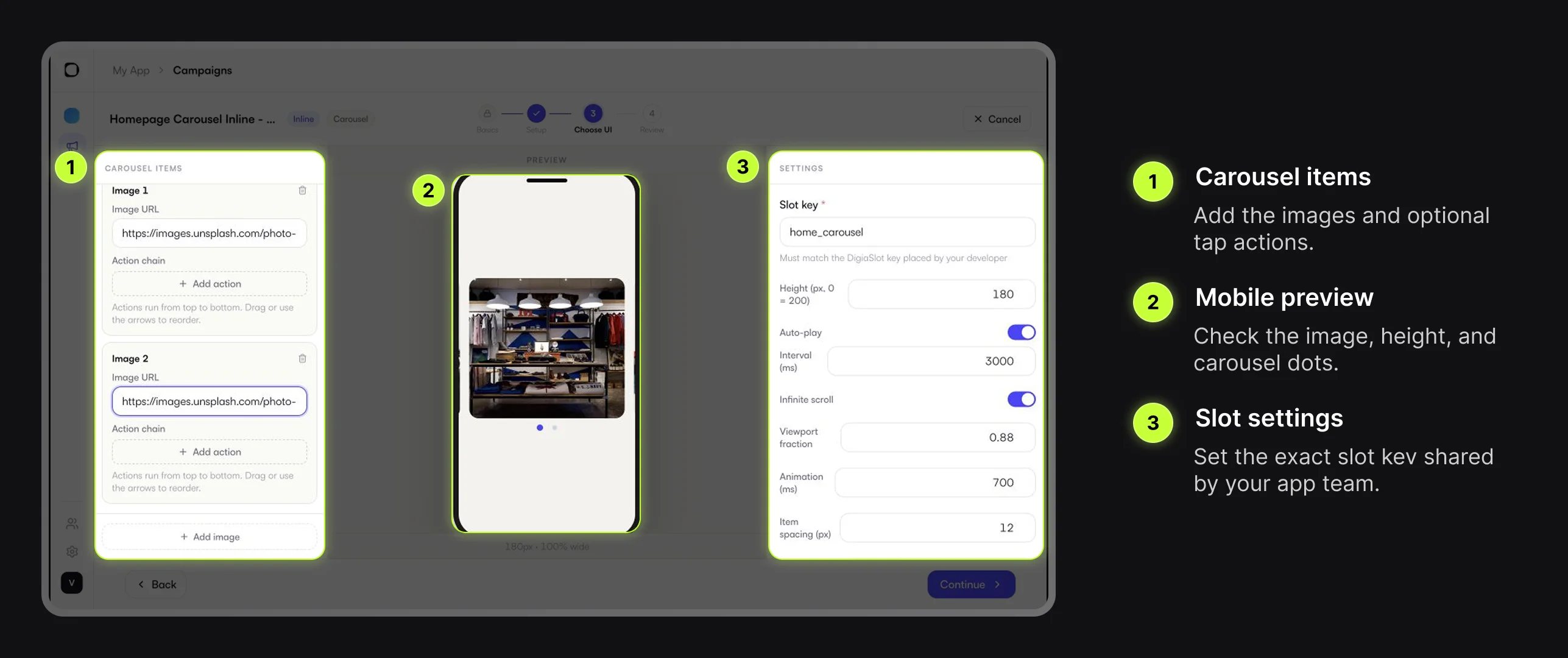
On the Choose UI step, add your carousel items.
For each image:
- Paste the image URL.
- Add a tap action only if tapping that image should open a deep link, URL, or another action.
- Keep the action chain empty if the carousel is informational.
In the Settings panel, enter the slot key provided by your app team.
home_carousel
Keep the default carousel settings unless you need to adjust the fit:
| Setting | What it controls |
|---|---|
| Height | The vertical space the carousel occupies inside the slot |
| Auto-play | Whether items advance automatically |
| Interval | Time between auto-play changes |
| Infinite scroll | Whether users can keep swiping in a loop |
| Viewport fraction | How much of one item is visible at a time |
| Indicator dots | Whether pagination dots appear below the carousel |
Once the Inline campaign UI is saved, use Live Testing Campaigns to send it to a connected debug device and confirm it renders inside the expected slot before moving into review and CleverTap setup.
Review the Inline Campaign
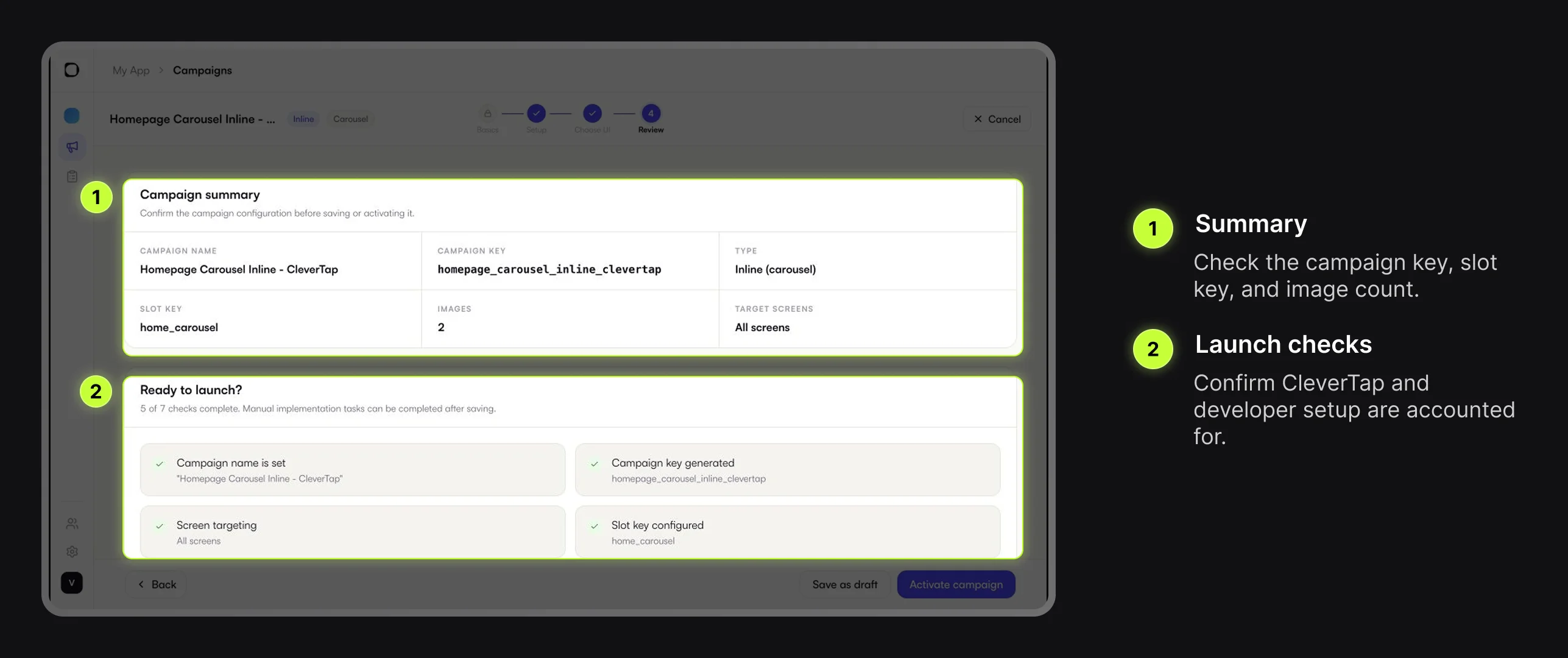
On the Review step, check:
- The campaign name is correct.
- The campaign type is Inline (carousel).
- The slot key matches the app slot.
- The expected number of images is present.
- The Native Display setup task is still tracked for CleverTap.
You can save as draft while CleverTap setup is still pending, or activate when the carousel is ready. Nothing renders in the app until the CleverTap Native Display campaign is configured and live.
Copy the Native Display Config
In Digia, copy the custom key-values from Set up your CleverTap Native Display campaign.
For this example, the values are:
| Custom key | Value |
|---|---|
digia_campaign_key | homepage_carousel_inline_clevertap |
variables | {} |
Use the exact campaign key copied from your own Digia campaign. If your campaign key is different because you used a different campaign name, paste the value shown in your own setup section.
Create the CleverTap Native Display Campaign
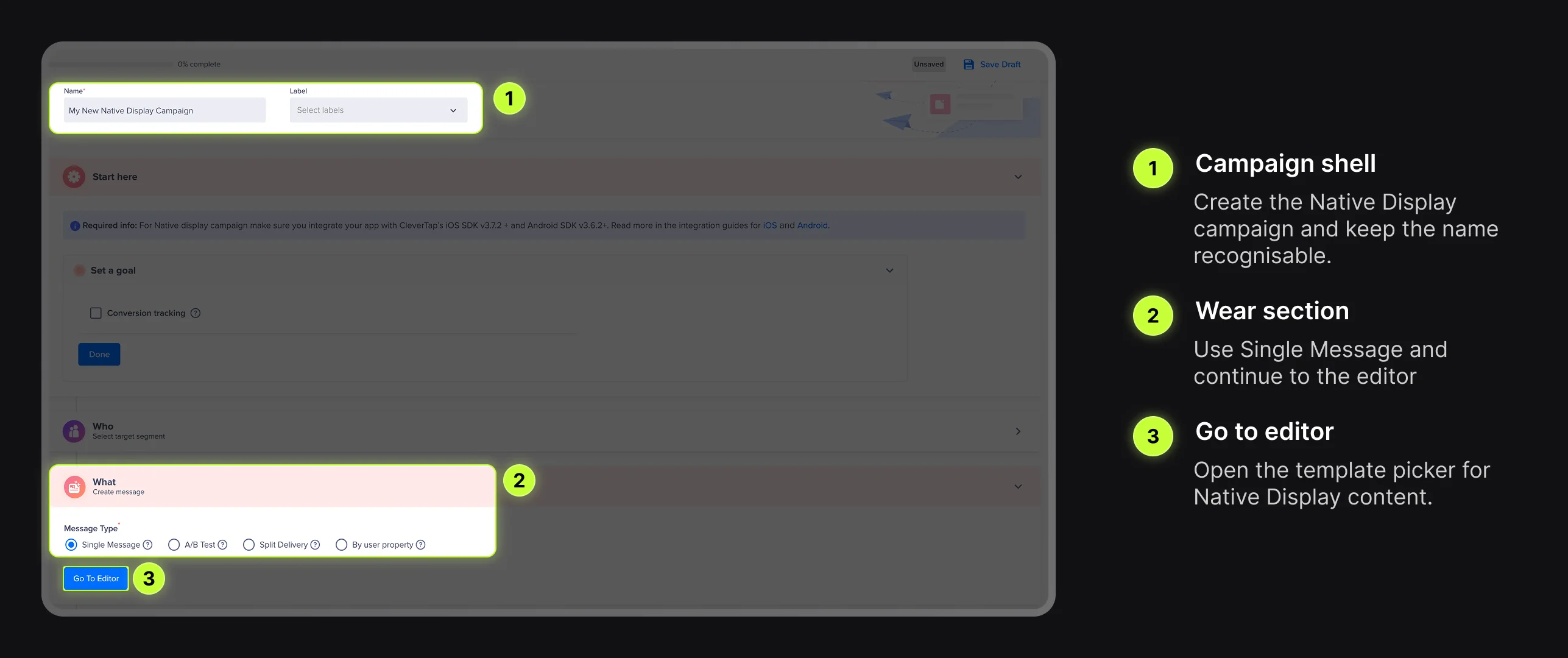
Now switch to CleverTap. Inline campaigns use Native Display, not the CleverTap In-App editor used for Nudges, Guides, and Surveys.
Create a Native Display campaign. Configure the audience, trigger, schedule, and priority as you normally would in CleverTap. For the first test, keep the audience narrow so only your test users qualify.
In the What section, keep the message type set to Single Message and choose Go To Editor.
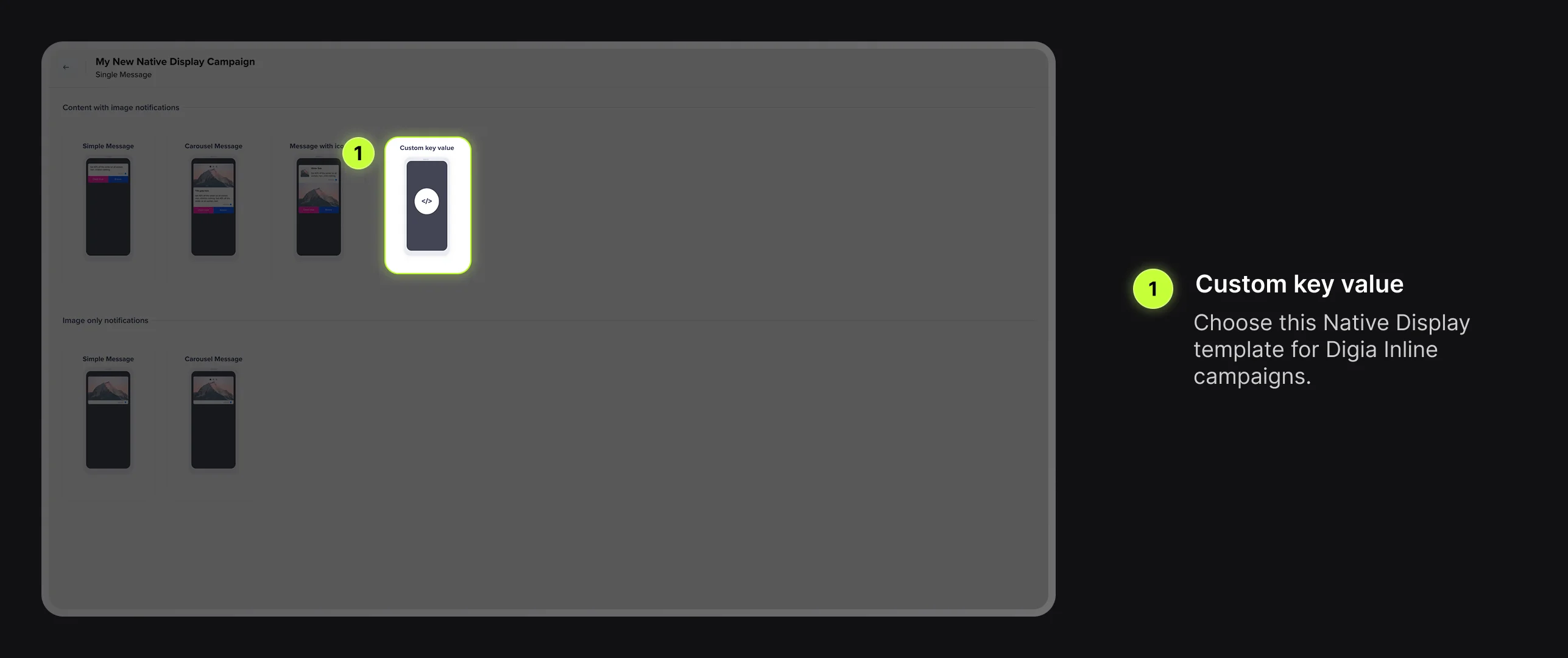
In the template picker, choose Custom key value. This template lets CleverTap send the digia_campaign_key and variables values that Digia needs.
Link CleverTap to the Digia Inline Campaign
In the CleverTap Native Display campaign, add the custom key-values copied from Digia.
| CleverTap custom key | Value |
|---|---|
digia_campaign_key | The Inline campaign key copied from Digia |
variables | The variables JSON copied from Digia |
For this carousel example, variables is {}.
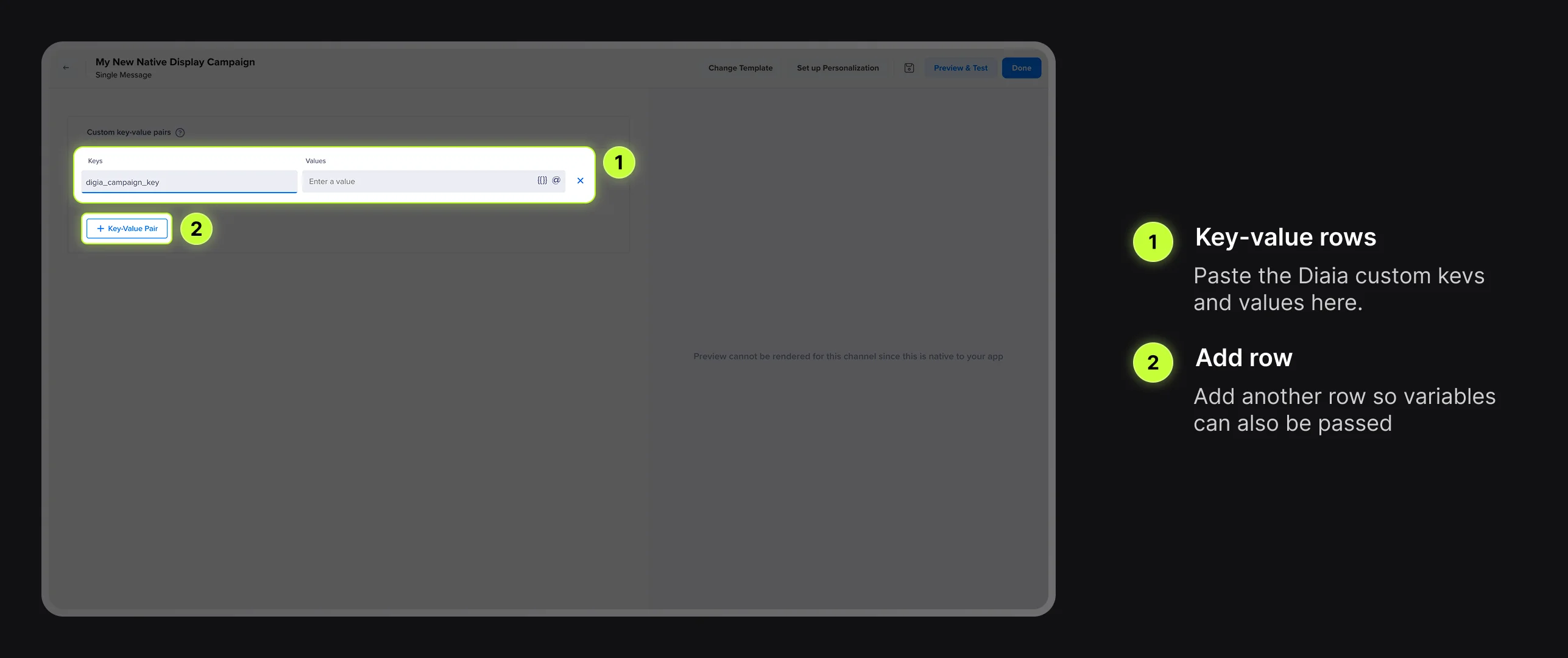
Keep the carousel images, slot key, and carousel behavior in Digia. CleverTap should only carry the campaign key and optional variables.
Test the Inline Campaign End to End
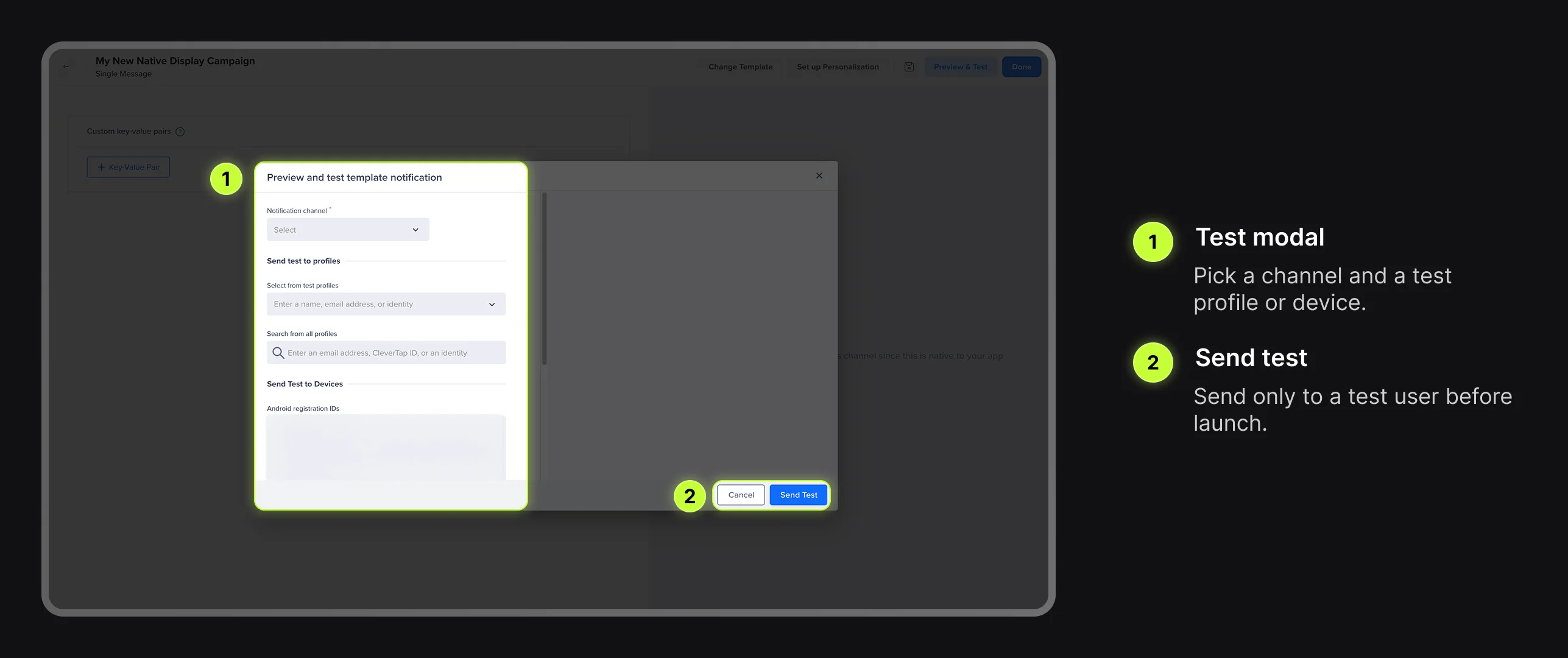
Before launching to a real audience, test the full path from CleverTap trigger to Digia render:
- Use a test audience in CleverTap.
- Activate or preview the Native Display campaign for that test audience.
- Open the app screen that contains the
home_carouselslot. - Trigger the CleverTap event from a test device.
- Confirm the carousel appears inside the correct slot.
- Swipe through all carousel items.
- Tap any configured item action and confirm it performs the expected action.
If the Inline campaign does not appear, check:
| What to check | Why it matters |
|---|---|
| The Digia campaign is active | Draft campaigns will not render for users |
digia_campaign_key matches exactly | The key is case-sensitive |
| The CleverTap campaign is Native Display | Inline campaigns use Native Display delivery |
| The user qualifies in CleverTap | CleverTap owns audience and trigger rules |
| The trigger event fired | CleverTap only sends the campaign after its trigger |
| The app screen contains the slot | Inline content needs a mounted DigiaSlot or DigiaSlotView |
| Slot key matches exactly | A typo prevents the carousel from rendering in the slot |
| Variables are valid JSON | For this example, the value should be {} |
CleverTap can sometimes take up to an hour to start delivering a new campaign. If the campaign still does not appear after that, reach out to Digia support.
Launch Checklist
Before going live, confirm:
- Digia Inline campaign is active.
- CleverTap campaign is a Native Display campaign.
digia_campaign_keymatches the Digia campaign key.variablesis valid JSON.- Slot key matches the app team's
DigiaSlotorDigiaSlotViewplacement key. - The slot exists on the screen where CleverTap will trigger the campaign.
- Audience and trigger rules are correct in CleverTap.
- The campaign was tested on at least one real device.
Once these are complete, schedule or activate the CleverTap campaign for the intended audience.
What to Measure
After launch, review:
| Metric | What it tells you |
|---|---|
| Native Display impressions | How often CleverTap delivered the payload |
| Inline renders | How often Digia rendered the carousel in the slot |
| Carousel item taps | Which image drove action |
| Downstream conversion event | Whether the carousel moved the intended business metric |
Use CleverTap for audience and downstream conversion analysis. Use Digia campaign reporting to understand how the rendered carousel performed.
Recap
- Create an Inline campaign in Digia.
- Choose Carousel as the widget type.
- Add carousel images and optional tap actions.
- Set the slot key shared by your app team.
- Copy the Native Display custom key-values from Digia.
- Create a CleverTap Native Display campaign.
- Add
digia_campaign_keyandvariablesas custom key-values. - Test on a real device before launch.
For developer setup, see Setting Up Inline Widgets. For the technical mapping between Digia and CleverTap, see How Digia Maps to CleverTap Campaigns.