In-App Survey with CleverTap
This guide walks you through creating a simple NPS Survey in the Digia Engage Dashboard, attaching it to a Digia Survey campaign, connecting that campaign to CleverTap, and testing it on a device.
By the end, you should have:
- a reusable NPS Survey built in Digia Engage
- a Survey campaign that points to that Survey
- a CleverTap In-App campaign that triggers the Digia Survey campaign
- a test device where you can complete the Survey end to end
Surveys are useful when you want structured feedback inside the app, such as:
- NPS or CSAT collection
- post-purchase feedback
- onboarding feedback
- cancellation or churn-reason capture
- lightweight research before launching a feature
Unlike a Nudge or Guide, a Survey has two parts:
| Part | What it controls |
|---|---|
| Survey | The questionnaire: welcome screen, questions, answer choices, branching, result pages, and survey-level settings |
| Campaign | The delivery wrapper: campaign key, optional variables, frequency cap, and CleverTap handoff values |
This guide keeps the Survey itself intentionally simple. For deeper survey design, read Understanding and Building Surveys, Survey Blocks Reference, Survey Branching and Logic, and Survey Global Settings.
Prefer a quick visual walkthrough first? Watch Creating Native NPS Survey Experiences.
Before You Start
Make sure you have:
- Access to the correct Digia Engage project.
- Access to the matching CleverTap project.
- Your app must already be integrated with Digia Engage and CleverTap. Share the CleverTap developer integration guide with your app team if this setup is not complete yet.
- The audience and trigger event decided in CleverTap, for example
Order Delivered,Checkout Completed, orApp Launched. - If you plan to target specific app screens, review usable pages in Component Registry.
- A test profile or test segment in CleverTap so you can verify the Survey before launch.
For this walkthrough, we will build a default Numeric 0-10 NPS Survey with:
| Field | Value |
|---|---|
| Survey name | NPS Feedback Survey |
| Main question | How likely are you to recommend us? |
| Survey variables | None |
| Delivery frequency | Until completed |
Variables are optional. This NPS example does not use variables, so the CleverTap variables value will be {}.
Create the Survey
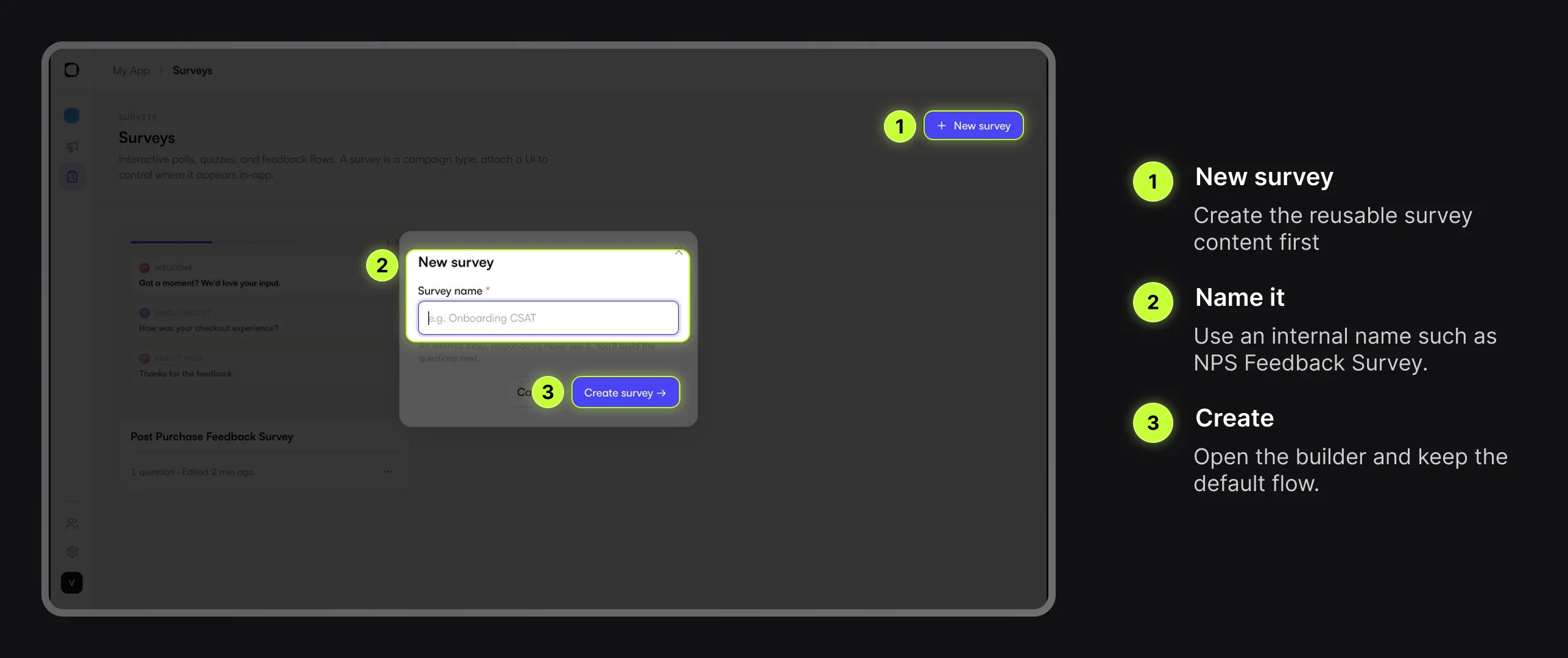
Go to Surveys and choose New survey.
Use a name that your team can recognize later:
NPS Feedback Survey
This name is internal. Respondents do not see it.
Add the Default NPS Block
In the Survey builder, choose Add a block, open the NPS category, and select Numeric 0-10.
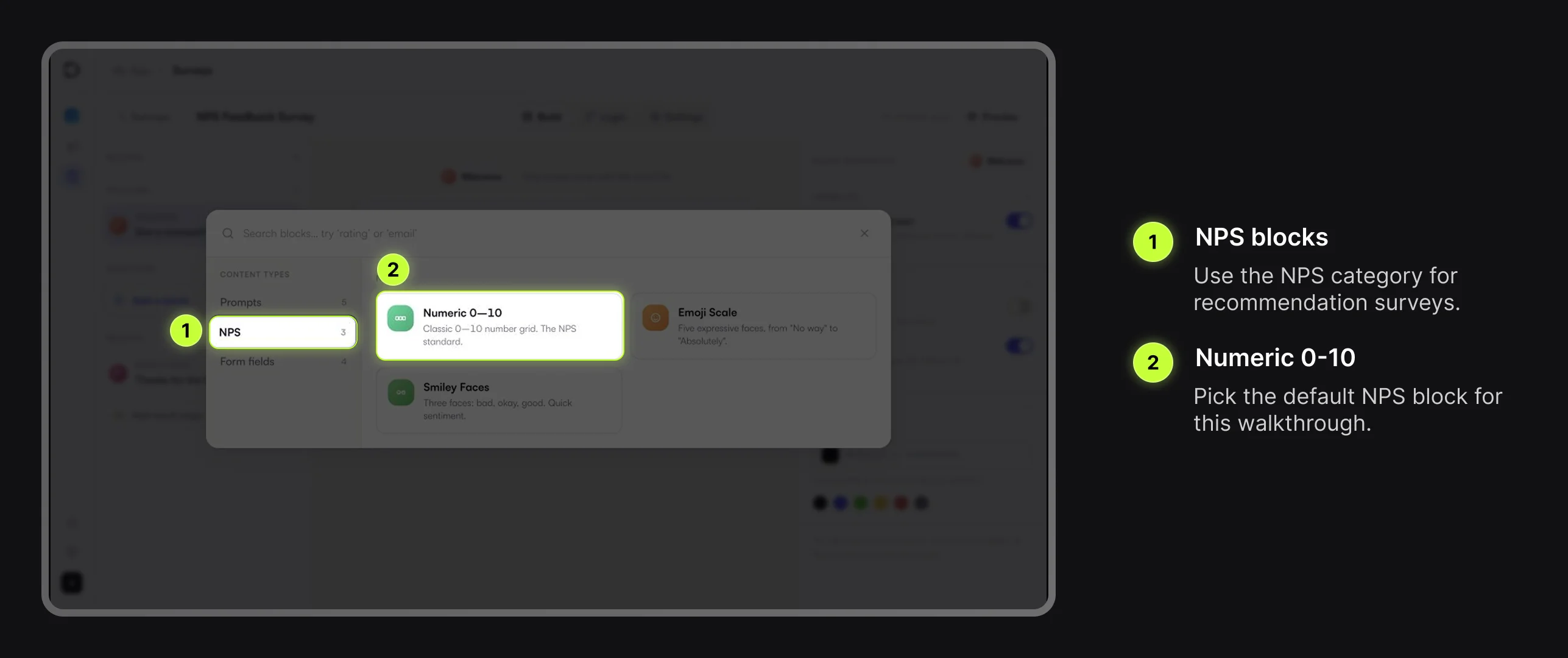
Keep the default NPS scale and update the question copy:
How likely are you to recommend us?
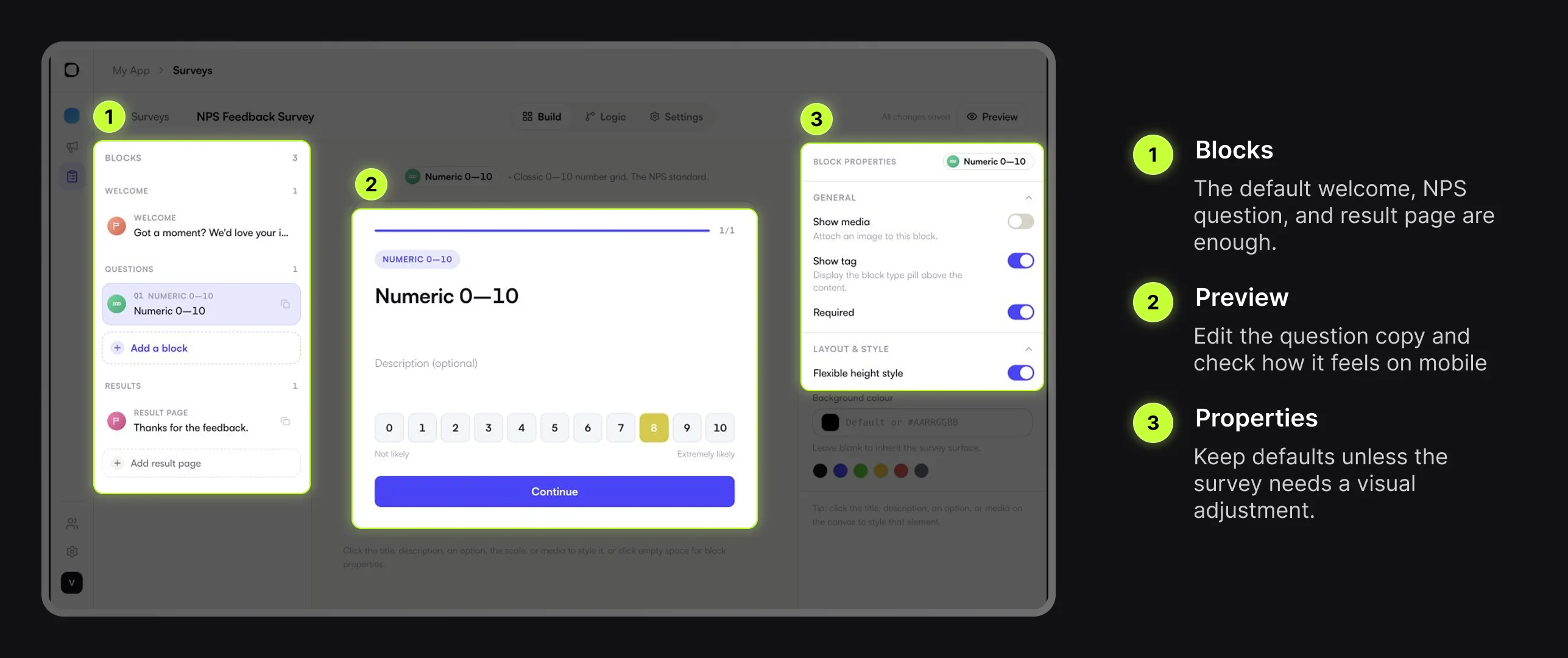
The Survey builder has three main areas:
- The left panel lists Survey blocks and result pages.
- The middle panel shows the live mobile preview.
- The right panel shows properties for the selected block or element.
For this first NPS Survey, keep the default welcome screen, Numeric 0-10 block, and result page. This keeps the campaign easy to test before you add branching or custom styling.
Check Logic and Survey Settings
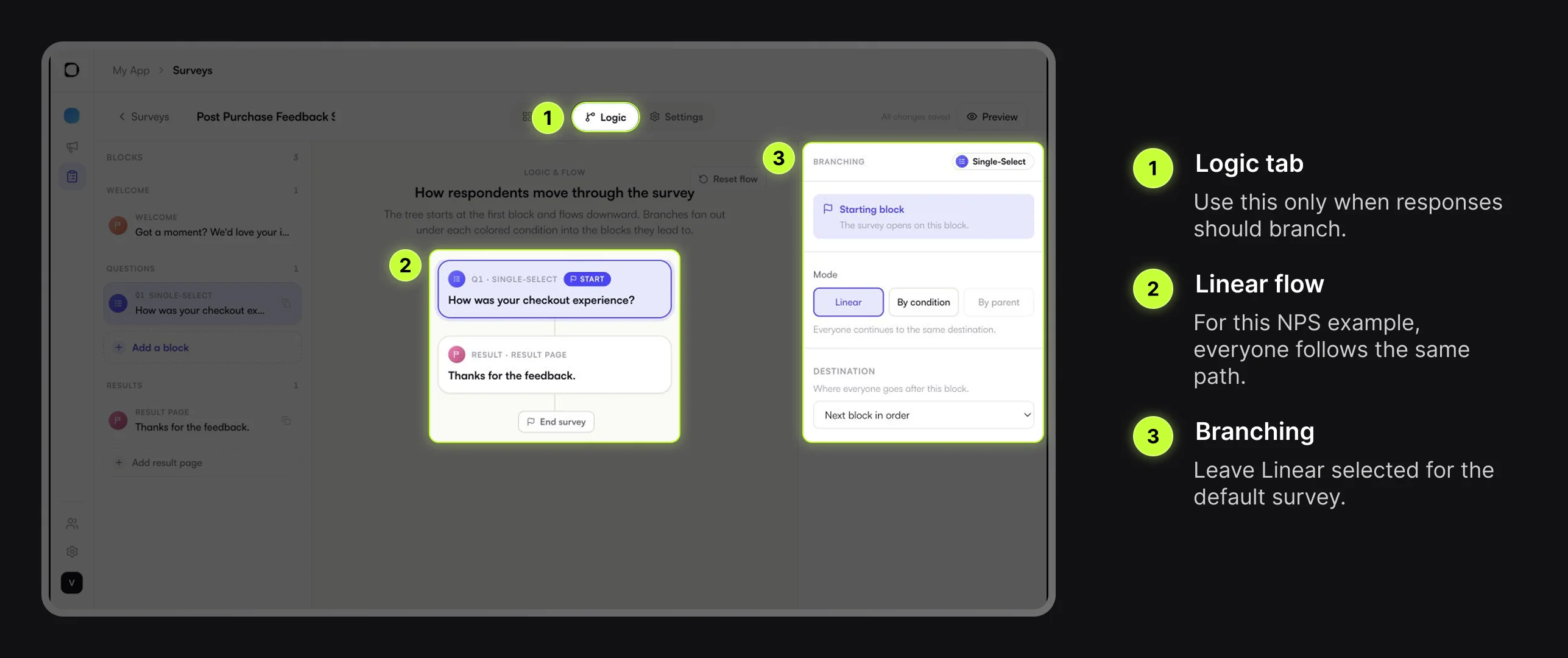
For this default NPS Survey, keep Logic set to Linear. Every respondent should see the welcome screen, answer the NPS question, and then see the result page.
Use Settings only if you need to change survey-level behavior such as:
- welcome screen visibility
- progress indicator
- button labels
- close button behavior
- dialog or bottom-sheet display
- auto-advance behavior
You do not need to change these settings for the default NPS example.
When your survey needs multiple question types, branching, or survey-level styling, use the deeper Survey guides before setting up delivery.
Create a Survey Campaign
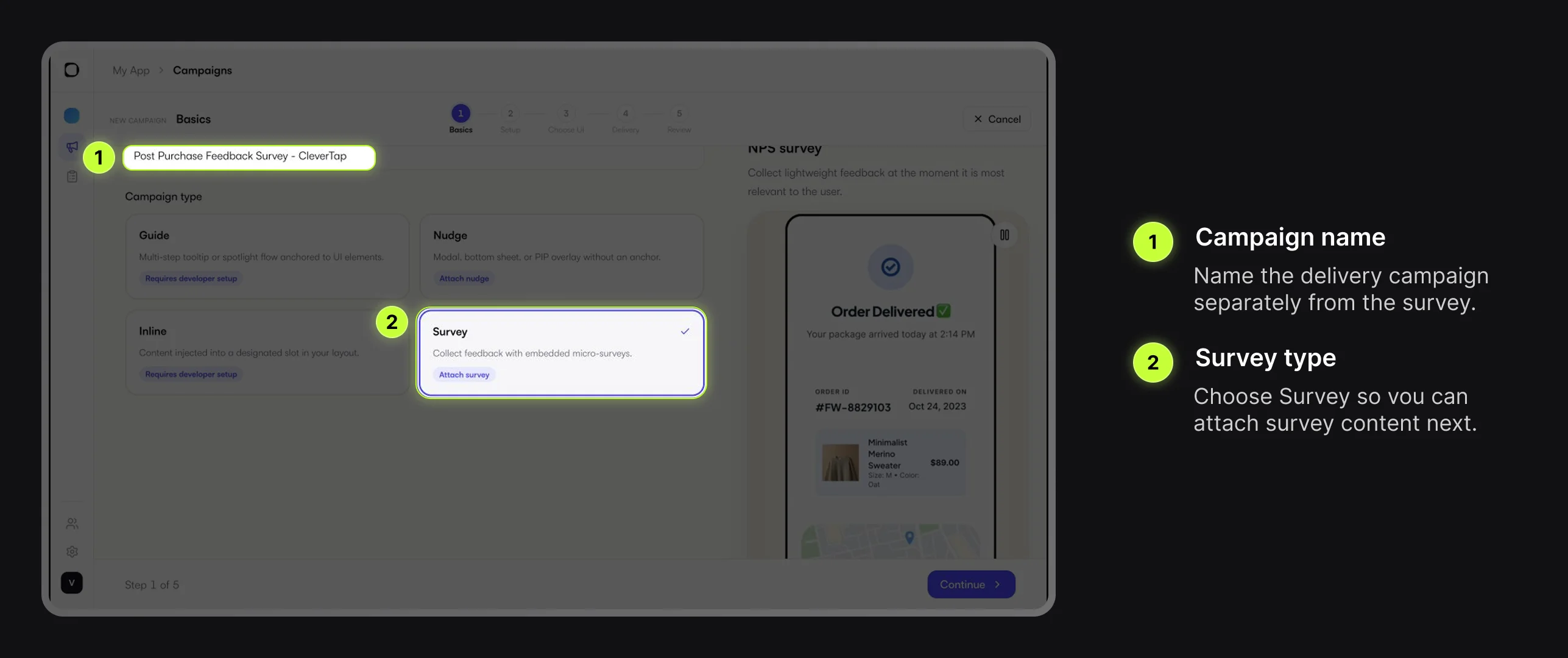
After the Survey is ready, go to Campaigns and choose New Campaign.
Use a campaign name that describes the delivery use case:
NPS Feedback Survey - CleverTap
On the Basics step, enter the campaign name, select Survey, and continue. Digia creates a campaign key from the name. You will use this key in CleverTap later.
Attach the NPS Survey
On the Choose UI step, select the NPS Feedback Survey you created earlier.
The Survey content stays reusable. The campaign controls when that Survey is delivered and which campaign key CleverTap should send.
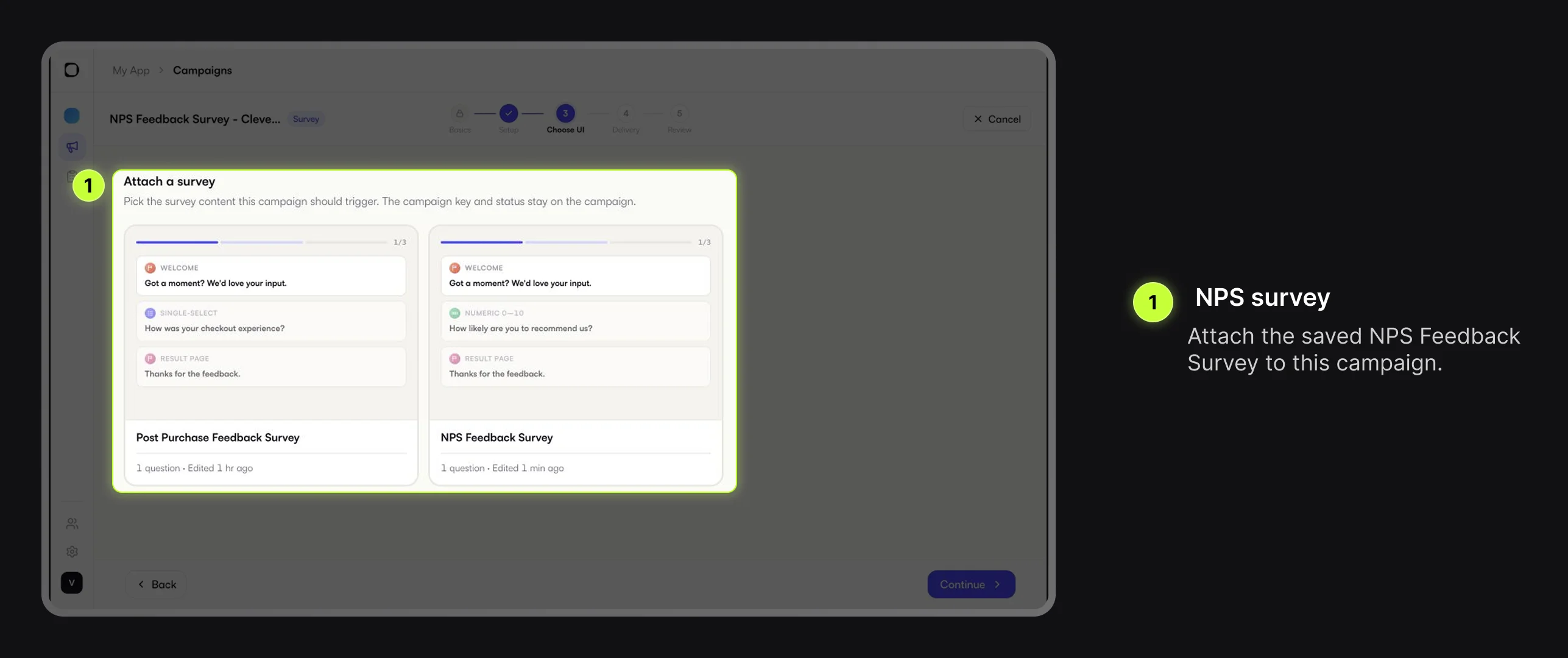
Once the Survey is attached and saved, use Live Testing Campaigns to send it to a connected debug device and confirm the prompt, result page, and submit flow before moving into delivery, review, and CleverTap setup.
Set Delivery Rules in Digia
On the Delivery step, choose how often Digia is allowed to show this Survey to the same user.
For most feedback Surveys, Until completed is a good starting point. It lets the Survey show again in a later session until the user submits it, then stops.
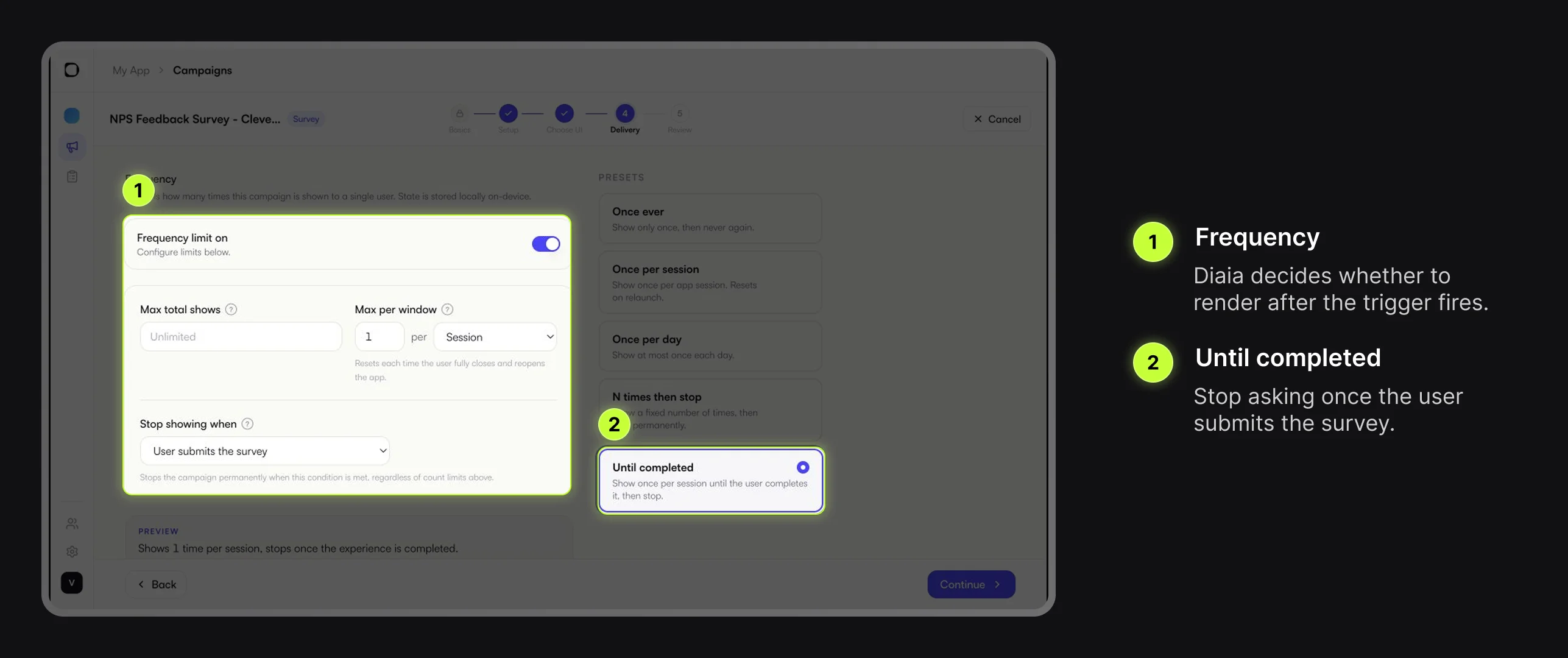
Common choices:
| Frequency cap | When to use it |
|---|---|
| Until completed | Feedback Surveys that should stop after submission |
| Once ever | One-time research or NPS collection |
| Once per session | Short contextual polls |
| Once per day | Surveys that can be shown again later, but not repeatedly |
CleverTap controls who qualifies and when the trigger happens. Digia controls whether the Survey should still render after CleverTap fires.
Review and Copy CleverTap Config
On the Review step, check:
- The campaign name is correct.
- The campaign type is Survey.
- The correct NPS Survey is attached.
- The Survey has the expected blocks.
- The frequency cap matches your feedback plan.
You can save as draft while CleverTap setup is still pending, or activate when the Survey campaign is ready. Nothing shows to your users until the CleverTap campaign is configured and live.
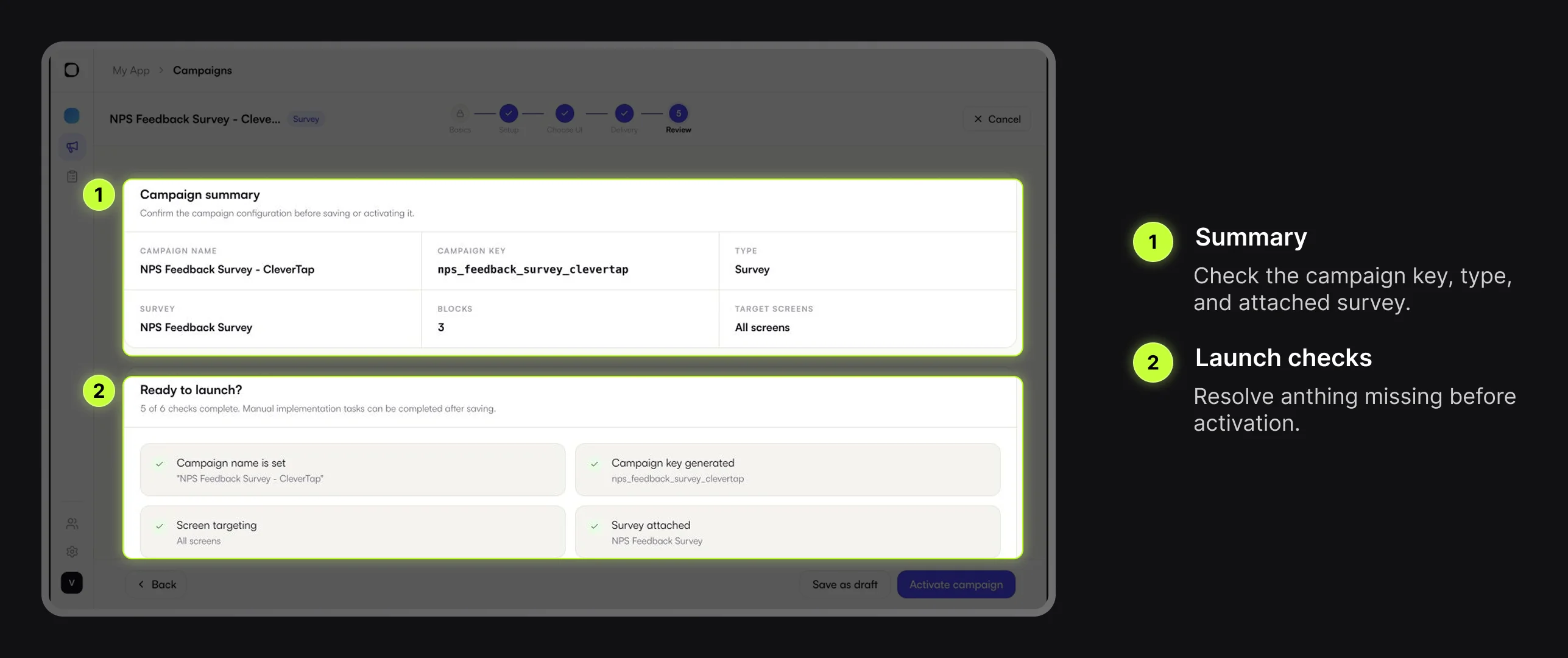
Scroll to Set up your CleverTap In-App campaign. Copy the campaign key and variables config from that section. You will paste those values into the CleverTap DigiaTemplate.
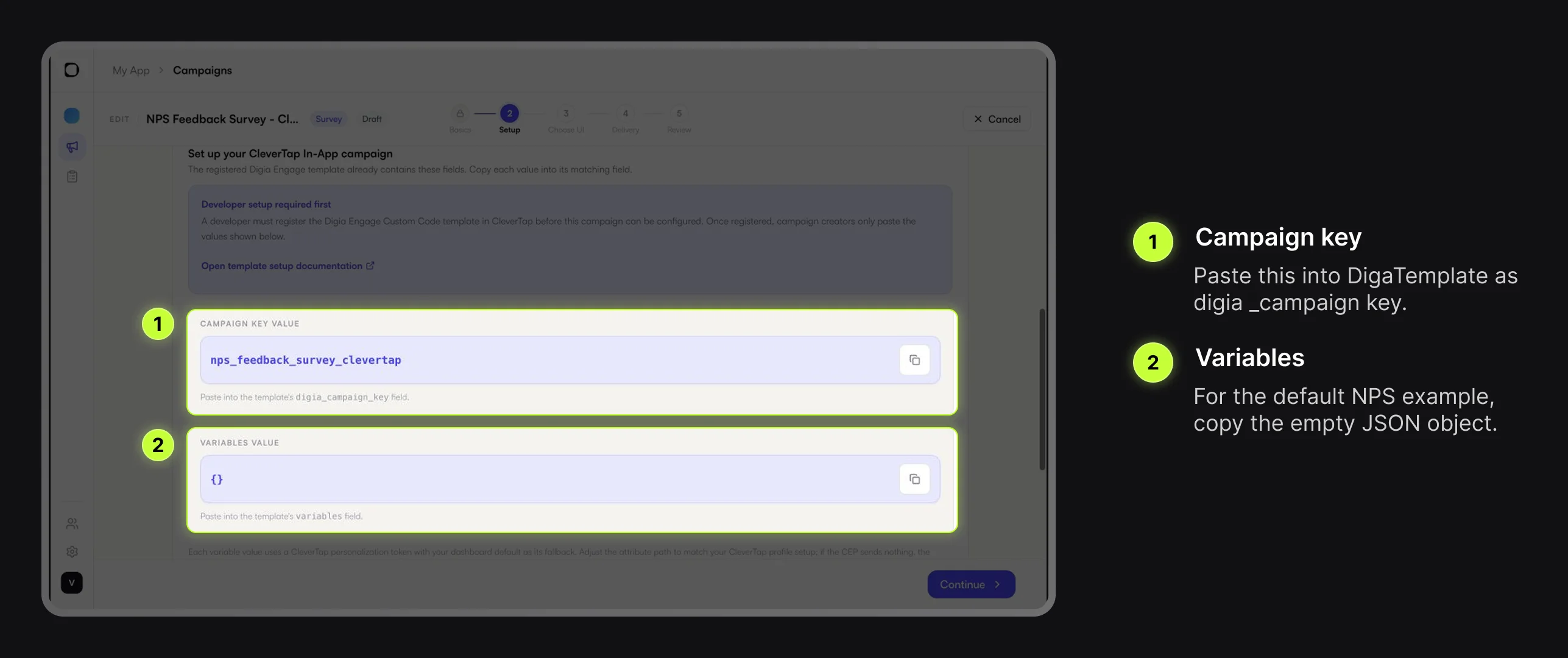
For this default NPS Survey, the variables value is:
{}
Create the CleverTap In-App Campaign
Now switch to CleverTap. This is where you decide who should see the Survey and when it should appear.
Create an In-App campaign. Configure the audience, trigger, schedule, and priority as you normally would in CleverTap. For the first test, keep the audience narrow so only your test users qualify.
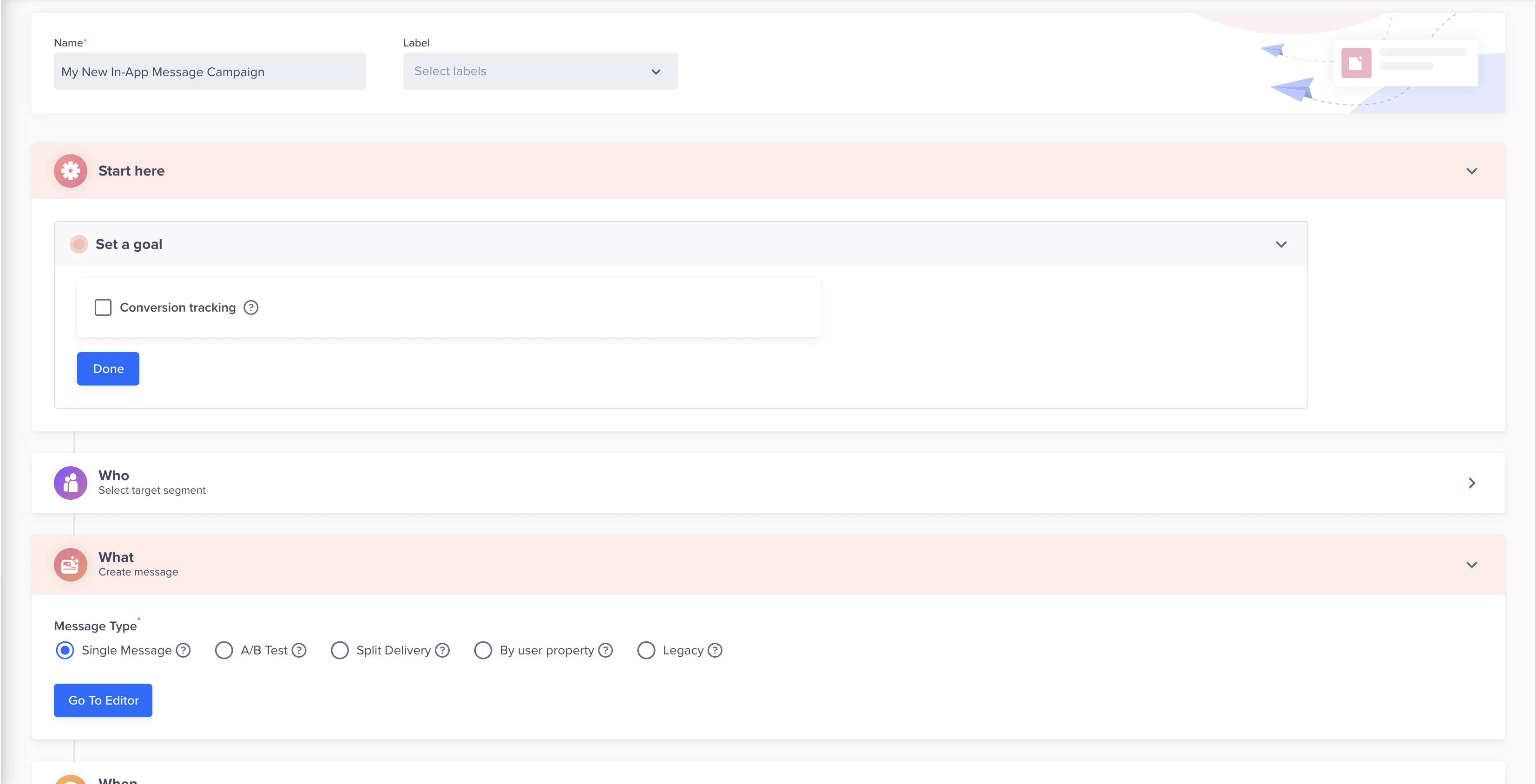
In CleverTap's What section, keep the message type set to Single Message and select Go To Editor. In the editor, switch to Custom Code Templates and choose DigiaTemplate.
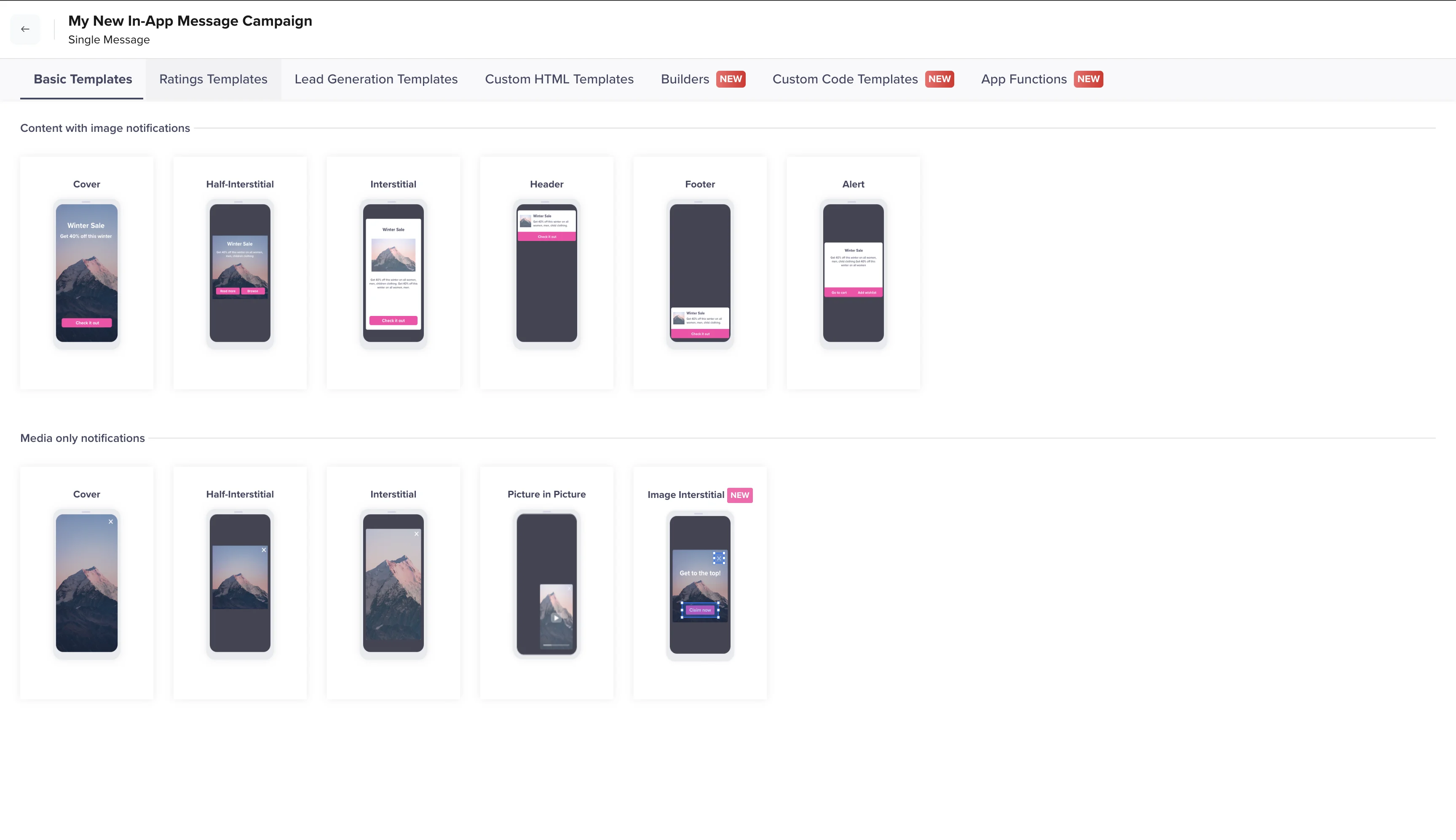
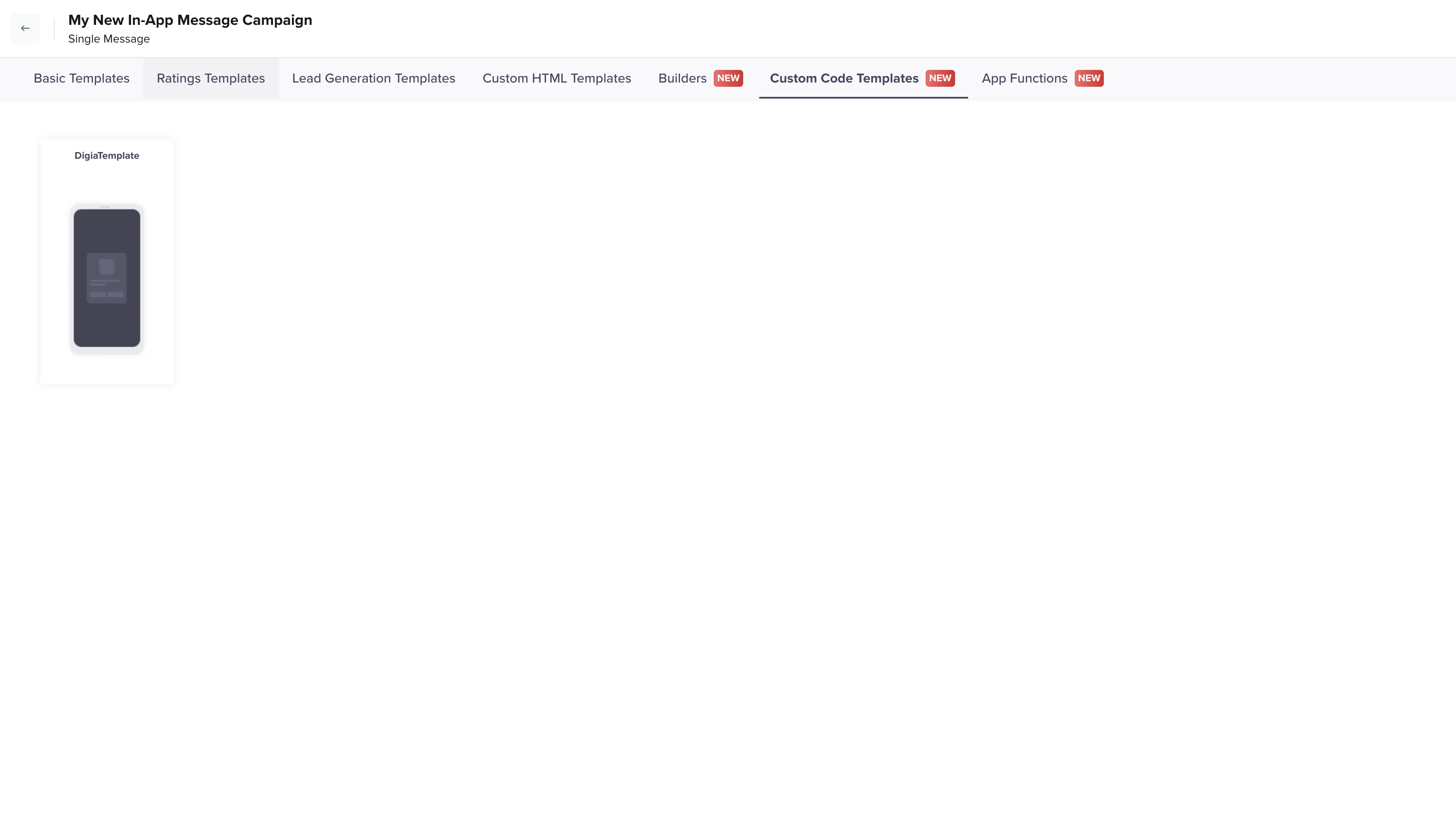
If you do not see DigiaTemplate, your developer team has not completed the one-time CleverTap template setup. Share the CleverTap developer integration guide with them before continuing.
Link CleverTap to the Digia Survey
In the CleverTap campaign message/template step, paste the values copied from Digia.
| DigiaTemplate field | Value |
|---|---|
digia_campaign_key | nps_feedback_survey_clevertap |
variables | {} |
Use the exact campaign key copied from your Digia campaign. If your campaign key is different because you used a different campaign name, paste the value shown in your own Digia setup section.
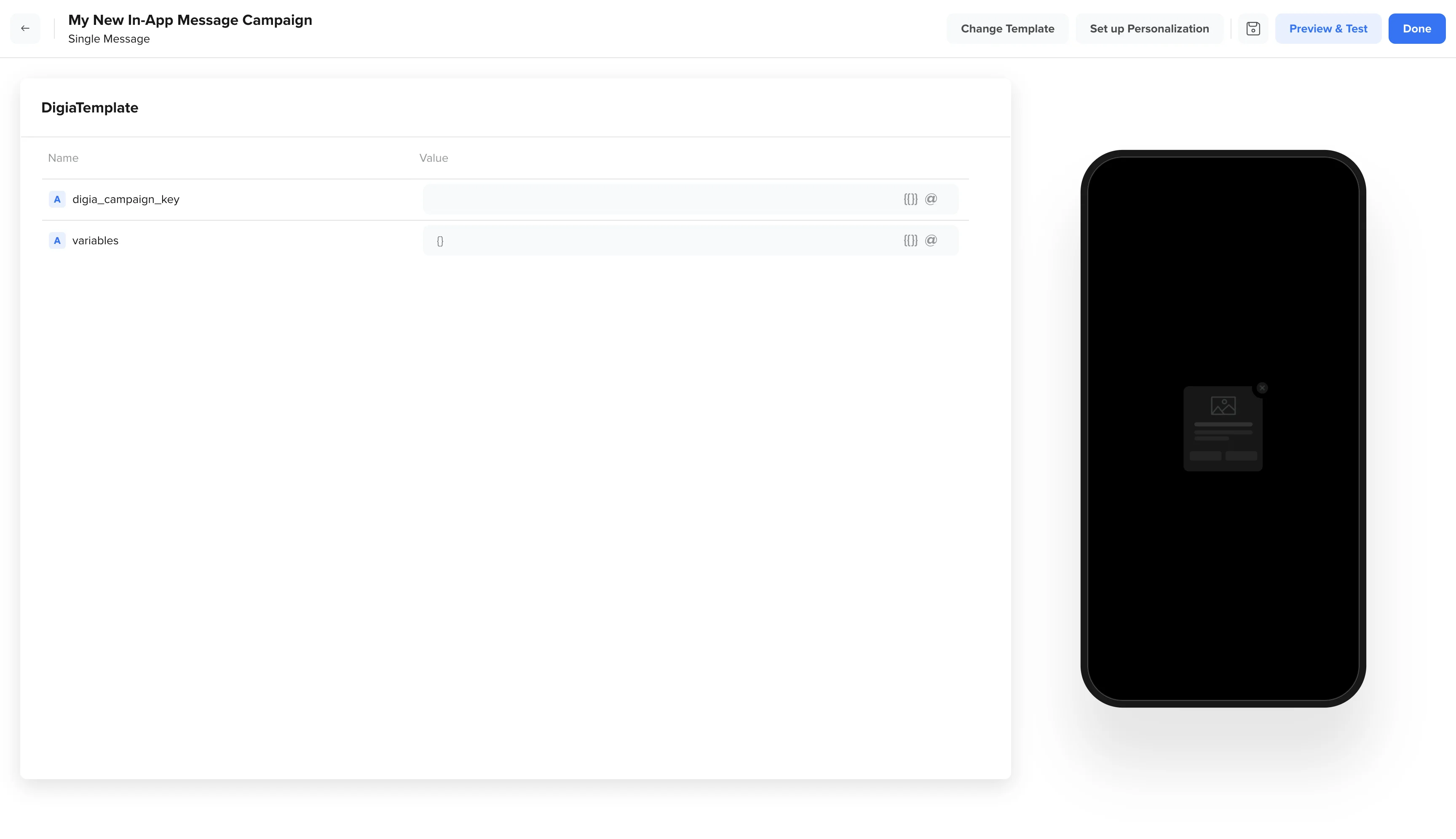
Keep the Survey questions, answer options, branching, and result pages in Digia. CleverTap should only carry the campaign key and optional variables.
Test the Survey End to End
Before launching to a real audience, test the full path from CleverTap trigger to Digia render:
- Use a test audience in CleverTap.
- Activate or preview the CleverTap campaign for that test audience.
- Trigger the CleverTap event from a test device.
- Confirm the Survey appears in the app.
- Select an NPS score and submit the Survey.
- Confirm the result page appears.
- Confirm the Survey does not appear again after completion, if you selected Until completed.
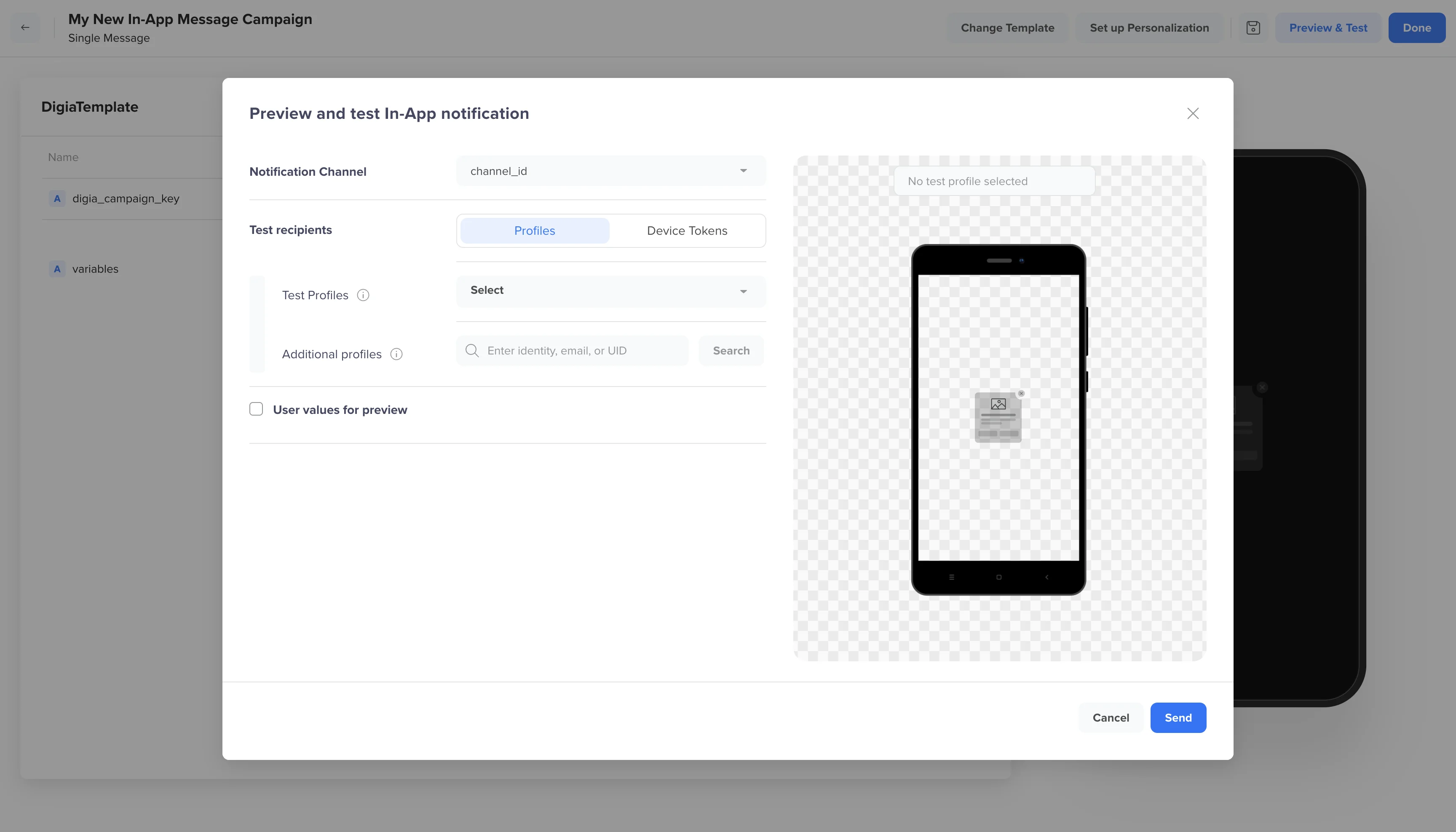
If the Survey does not appear, check:
| What to check | Why it matters |
|---|---|
| The Digia campaign is active | Draft campaigns will not render for users |
| The NPS Survey is attached to the campaign | The campaign needs saved Survey content to render |
digia_campaign_key matches exactly | The key is case-sensitive |
| DigiaTemplate is available in CleverTap | The In-App campaign must use the registered template |
| The user qualifies in CleverTap | CleverTap owns audience and trigger rules |
| The trigger event fired | CleverTap only sends the campaign after its trigger |
| Frequency cap has not already been reached | Digia may suppress repeat renders after completion |
| Variables are valid JSON | For this example, the value should be {} |
CleverTap can sometimes take up to an hour to start delivering a new campaign. If the campaign still does not appear after that, reach out to Digia support.
Launch Checklist
Before going live, confirm:
- Survey content is complete.
- Digia Survey campaign is active.
- The correct NPS Survey is attached to the campaign.
- CleverTap campaign uses DigiaTemplate.
digia_campaign_keymatches the Digia campaign key.variablesis valid JSON.- Audience and trigger rules are correct in CleverTap.
- Frequency cap is set in Digia.
- The Survey was tested on at least one real device.
Once these are complete, schedule or activate the CleverTap campaign for the intended audience.
What to Measure
After launch, review:
| Metric | What it tells you |
|---|---|
| Impressions | How often the Survey was shown |
| Starts | How many users began the Survey |
| Completions | How many users submitted the Survey |
| NPS score distribution | How users are distributed across the 0-10 scale |
| Detractors, passives, and promoters | Which user groups need follow-up |
| Drop-off by step | Where respondents stopped |
| Conversion event in CleverTap | Whether the Survey audience behaved differently later |
Use CleverTap for audience and downstream conversion analysis. Use Digia reporting to understand how the Survey experience performed.
Recap
- Create the NPS Feedback Survey in Digia.
- Add the default Numeric 0-10 NPS block.
- Keep logic and survey settings at their defaults.
- Create a Survey campaign in Digia.
- Attach the saved NPS Survey to the campaign.
- Set delivery rules, usually Until completed for feedback Surveys.
- Copy the campaign key and
{}variables config from Digia. - Create a CleverTap In-App campaign using
DigiaTemplate. - Paste the key as
digia_campaign_keyand paste{}intovariables. - Test on a real device before launch.
For the technical mapping between Digia and CleverTap, see How Digia Maps to CleverTap Campaigns.