Component Registry
The Component Registry is the list of app pages, Guide anchors, and Inline slots that Digia Engage has synced from your debug app.
Use it after the SDK integration is complete and before building campaigns that depend on exact app-side keys. The registry helps you avoid manual mistakes such as typing the wrong screen name, choosing an anchor from the wrong page, or using an Inline slot that does not exist in the app.
What Gets Synced
When Sync is enabled in the SDK debug settings screen, Digia can collect:
| Component | What it means | Where it is used |
|---|---|---|
| Pages | Screens reported by the app | Target screen selection |
| Anchors | UI elements that Guides can point to | Guide and tooltip steps |
| Slots | Places where Inline content can render | Inline campaign builders |
The SDK syncs these values from debug builds while you move through the app. Release builds do not expose the debug settings screen or sync components.
Before You Start
Make sure:
- The app has completed Digia Engage SDK setup.
- Your app team has added screen reporting, Guide anchors, and Inline slots where needed.
- You have a debug build of the app installed.
- You can open the SDK debug settings screen. See SDK Debug Settings if that setup is not done yet.
The same Sync connection is also used for Live Testing Campaigns. If you already connected a debug device for live testing, you can use that same flow to sync pages, anchors, and slots.
Sync Components from the App
In the Digia Engage dashboard, open the project and go to Test & Debug.
Use the QR code to open the SDK debug settings screen on a debug build of the app. Enable Sync, restart the app, and then navigate through the app screens you want to use for campaigns.
As you visit screens, Digia receives the pages reported by the app, plus any anchors and slots mounted on those pages.
If a page, anchor, or slot does not appear, keep the app open, confirm Sync is enabled, restart the debug app, and visit the screen where that component is mounted.
Review Synced Components
Go to Components in the Digia Engage dashboard.
Newly synced entries appear as Unreviewed. Review them before campaign creators use them in builders.
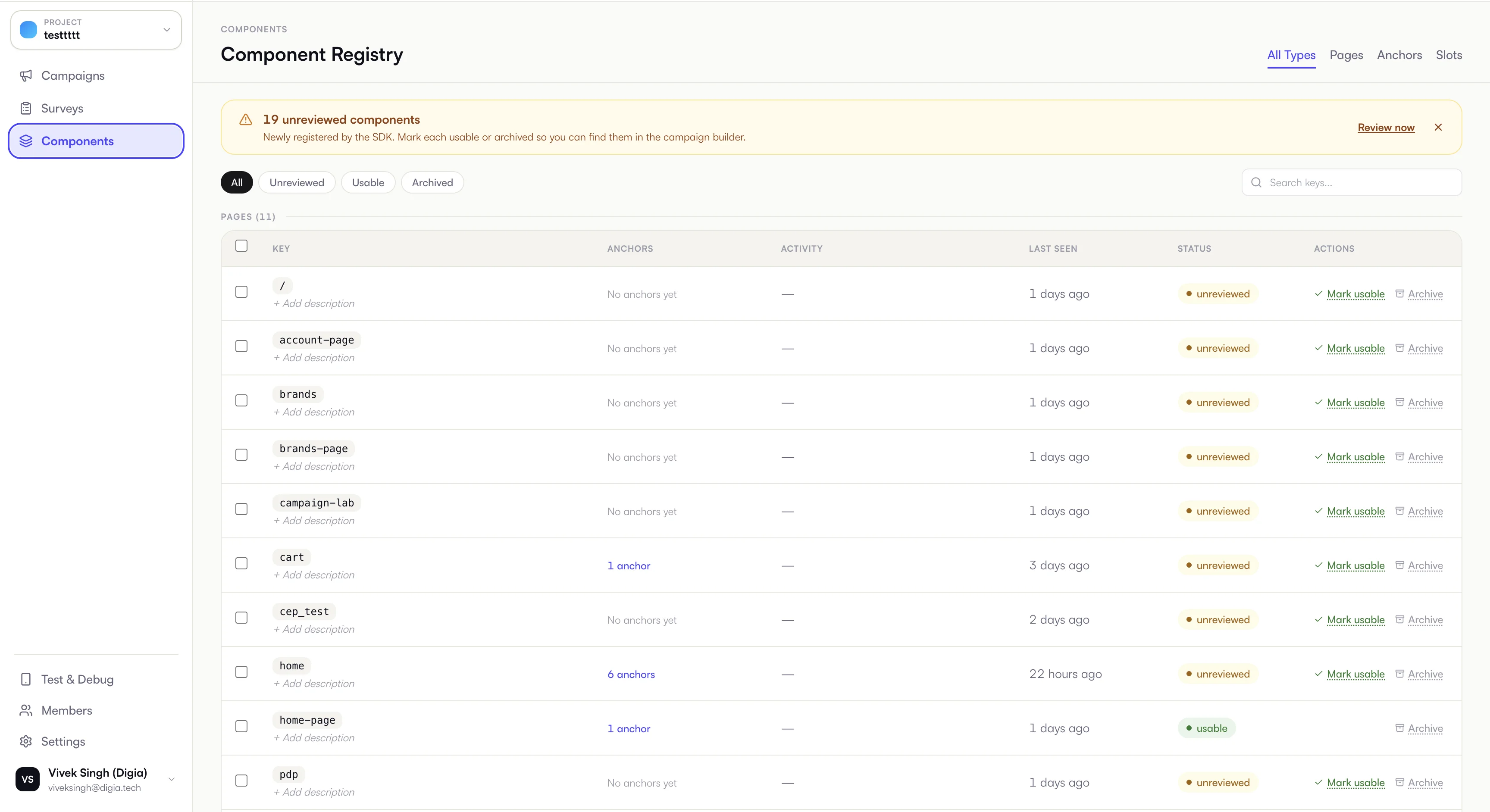
Use the tabs to review:
- Pages: app screens reported by
setScreen. - Anchors: UI elements available for Guide steps.
- Slots: Inline placements available inside the app layout.
Mark What Campaigns Can Use
Every synced component has a review state:
| Status | Meaning |
|---|---|
| Unreviewed | Newly synced. Decide whether campaign creators should use it. |
| Usable | Available in campaign builders. |
| Archived | Hidden from campaign builders, but kept for reference. |
Mark a component Usable when it is stable and safe for campaign targeting. Archive components that are temporary, internal-only, duplicated, or not meant for campaigns.
Add descriptions when the key is not obvious. A short note such as Home page top carousel slot or Cart checkout CTA anchor makes campaign creation much easier later.
Use Reviewed Components in Campaigns
Reviewed components reduce manual entry while creating campaigns:
| Campaign area | What appears after review |
|---|---|
| Target screens | Usable pages appear in the target screen selector. You can still add a screen manually for older integrations. |
| Guide builder | After you select a target screen, Digia shows usable anchors from that screen. |
| Inline builder | Usable slots appear in the slot selector. |
This keeps Guides tied to anchors that actually exist on the selected screen, and Inline campaigns tied to slots that the app can render.
Recommended Review Practice
- Review components after a new app release or SDK integration change.
- Mark only campaign-safe pages, anchors, and slots as usable.
- Archive transient screens and temporary developer keys.
- Keep descriptions short and practical.
- Re-sync after your app team adds new anchors, slots, or screen reporting.
If Something Is Missing
| Problem | What to check |
|---|---|
| Page does not appear | Enable Sync, restart the debug app, and navigate to that page. |
| Anchor does not appear | Visit the screen where the anchor is mounted and confirm that page is synced. |
| Slot does not appear | Visit the screen that contains the Inline slot and confirm Sync is connected. |
| Anchor is not visible in a Guide | Make sure the target screen is marked usable and the anchor belongs to that screen. |
| Slot is not visible in an Inline campaign | Make sure the slot is marked usable. |
| Too many noisy entries | Archive transient, duplicate, or developer-only components. |