In-App Survey with MoEngage
This guide walks you through creating a simple NPS Survey, attaching it to a Digia Survey campaign, connecting that campaign to MoEngage, and testing it on a device.
Unlike a Nudge or Guide, a Survey has two parts: the reusable Survey content and the campaign that delivers it.
This guide keeps the Survey itself intentionally simple. For deeper survey design, read Understanding and Building Surveys, Survey Blocks Reference, Survey Branching and Logic, and Survey Global Settings.
Prefer a quick visual walkthrough first? Watch Creating Native NPS Survey Experiences.
Before You Start
Make sure you have:
- Access to the correct Digia Engage project created with MoEngage as the CEP integration.
- Access to the matching MoEngage project.
- Your app must already be integrated with Digia Engage and MoEngage. Share the MoEngage developer integration guide with your app team if this setup is not complete yet.
- The audience and trigger event decided in MoEngage.
- If you plan to target specific app screens, review usable pages in Component Registry.
- A test profile or test segment in MoEngage so you can verify the campaign before launch.
This guide is written for product managers and marketers. Developer-only setup is linked above so you know what must already be complete before campaign testing.
For this walkthrough, we will build a default Numeric 0-10 NPS Survey with Until completed delivery.
Create the Survey
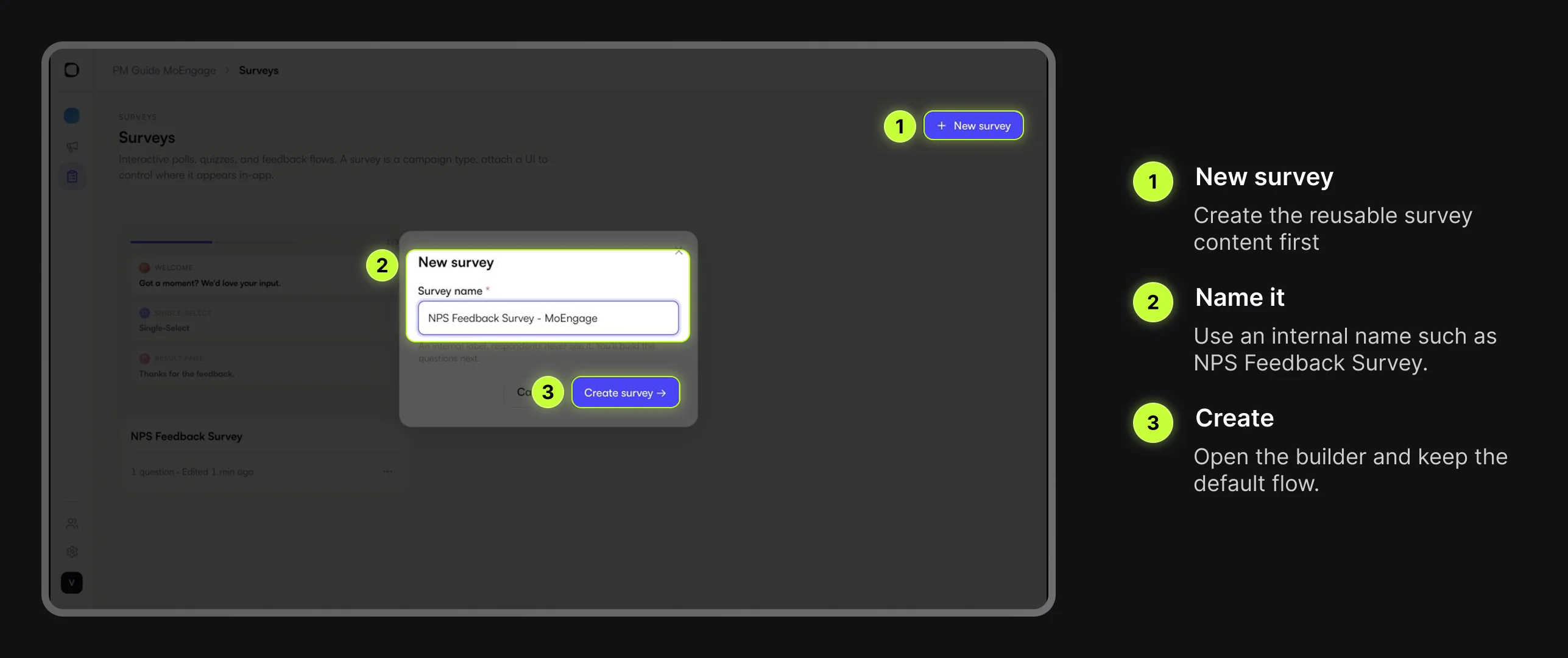
Go to Surveys and choose New survey. Use an internal name such as:
NPS Feedback Survey
Add the Default NPS Block
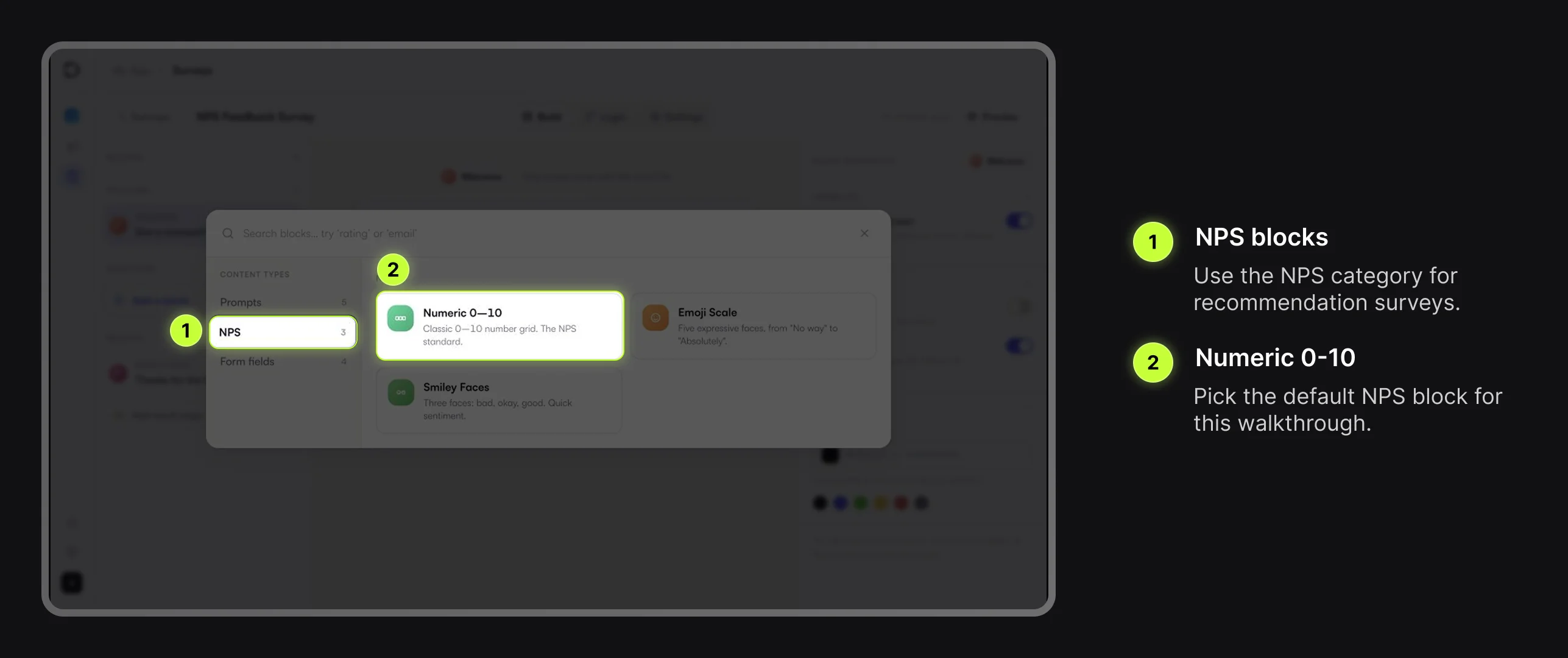
In the Survey builder, choose Add a block, open the NPS category, and select Numeric 0-10. Keep the default scale and update the question copy.
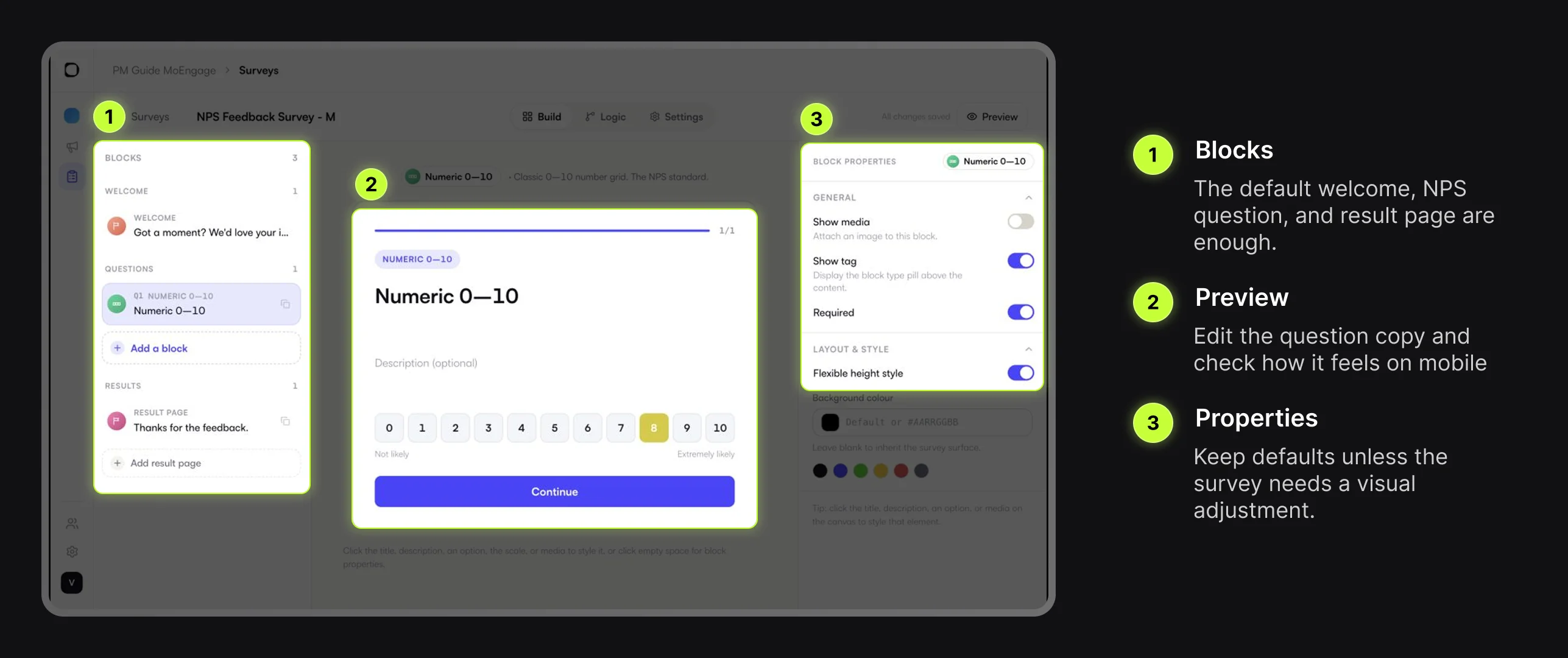
The builder has blocks on the left, mobile preview in the middle, and properties on the right. Keep the default welcome screen, Numeric 0-10 block, and result page for this first test.
Check Logic and Survey Settings
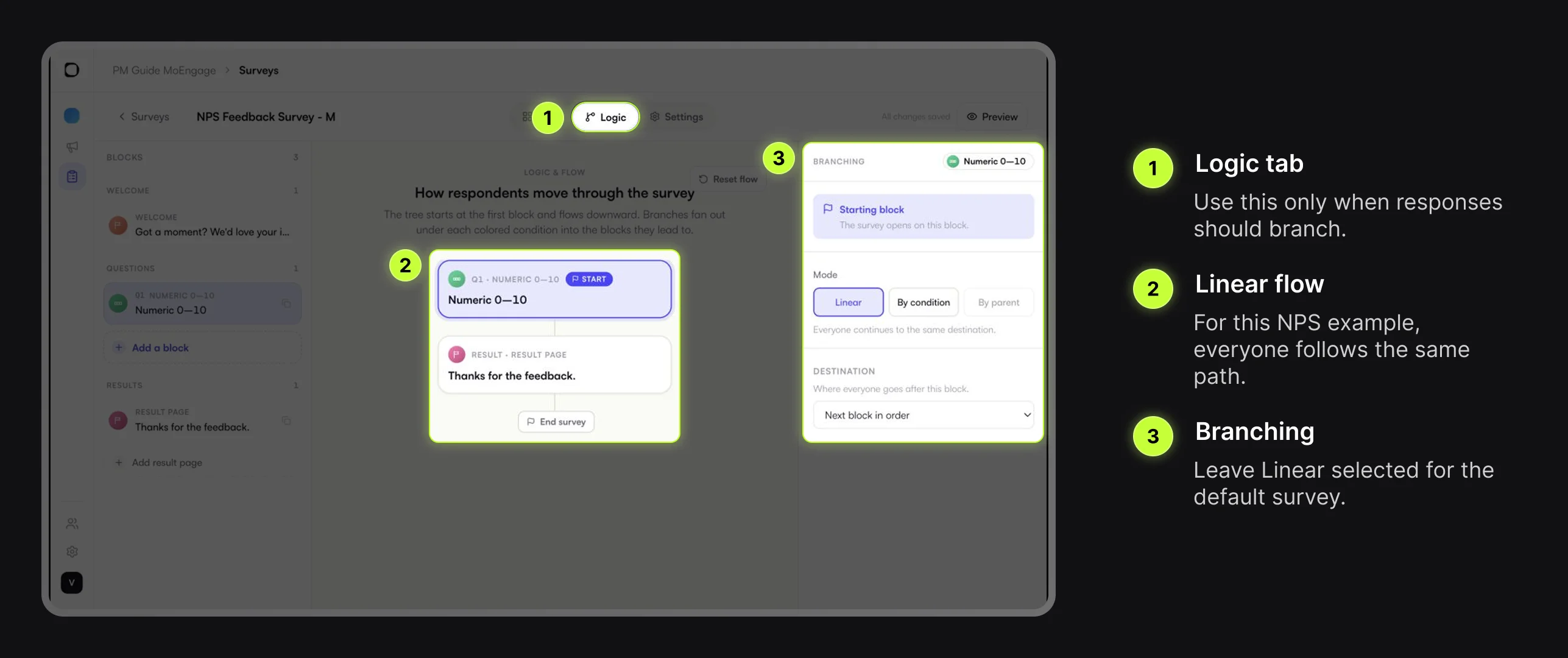
For this default NPS Survey, keep Logic set to Linear. Every respondent should see the welcome screen, answer the NPS question, and then see the result page.
Create a Survey Campaign
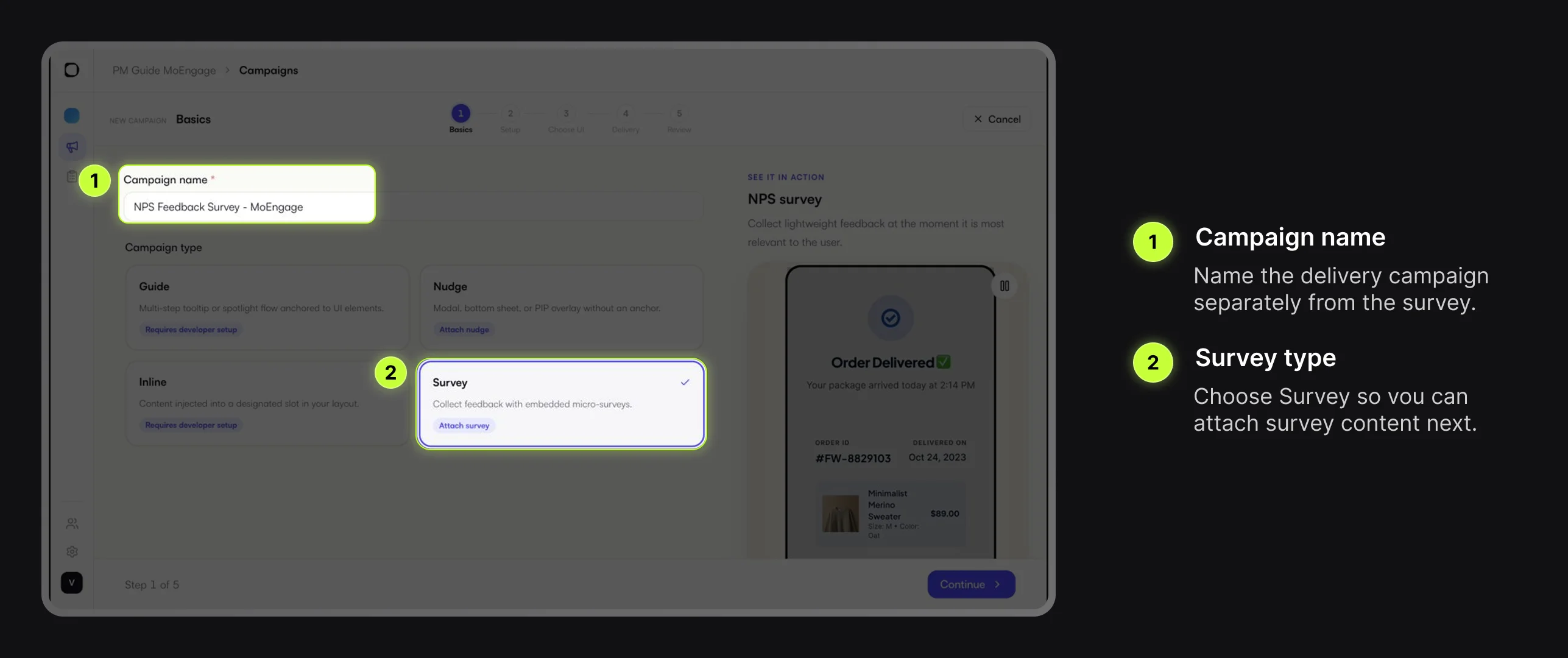
After the Survey is ready, go to Campaigns and choose New Campaign. Use a campaign name such as:
NPS Feedback Survey - MoEngage
On the Basics step, select Survey and continue.
Attach the NPS Survey
On the Choose UI step, select the NPS Feedback Survey you created earlier. The Survey content stays reusable; the campaign controls delivery and the campaign key.
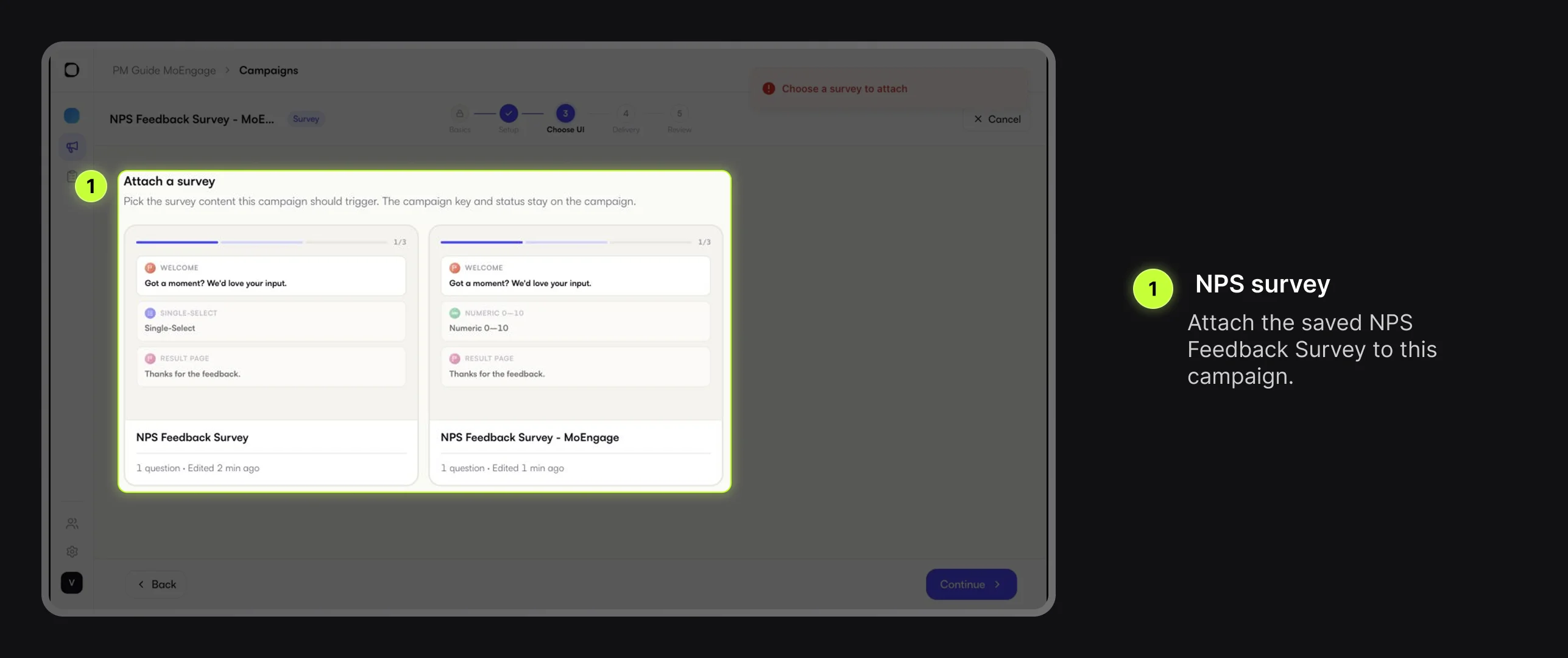
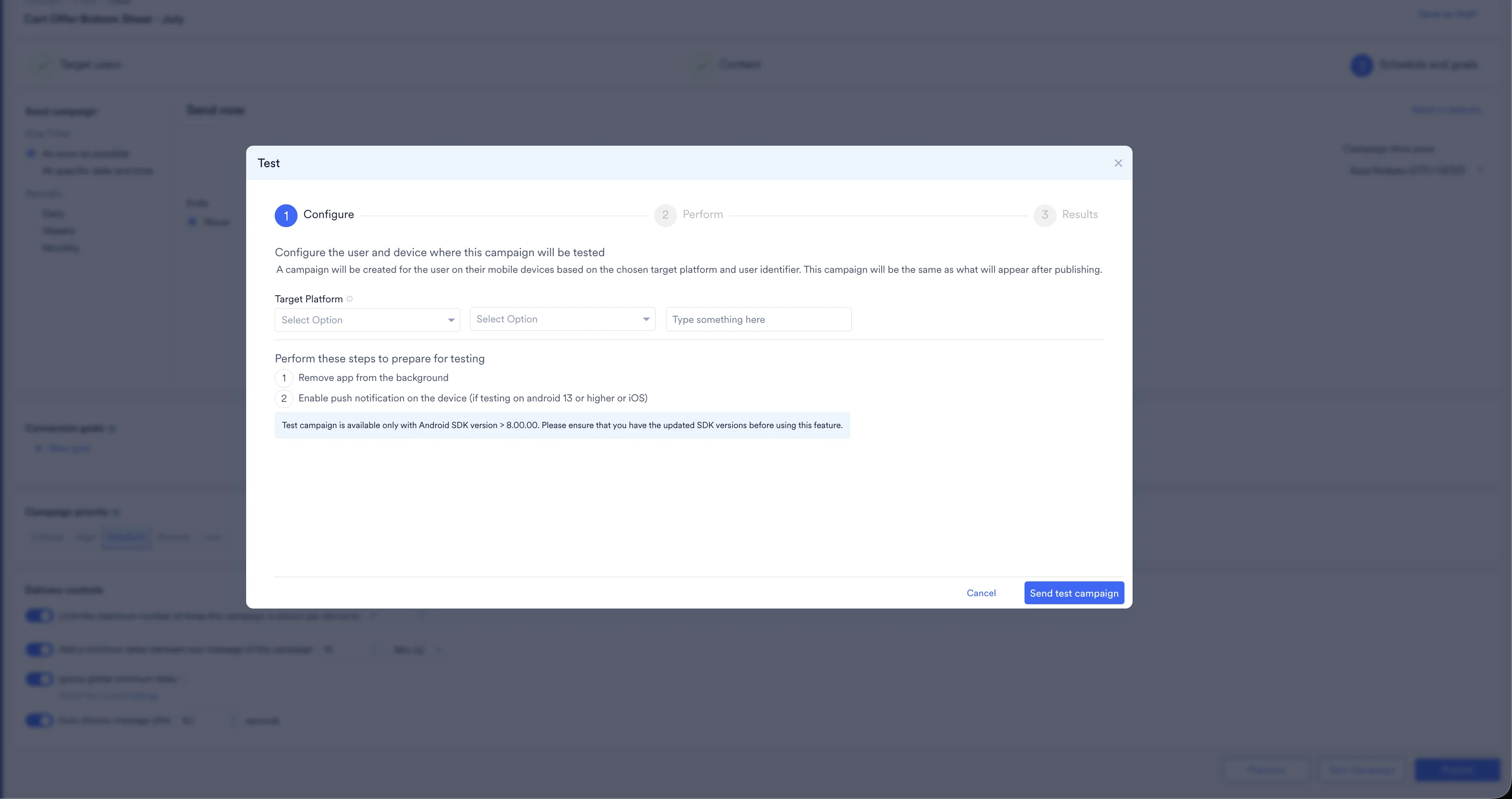
Once the Survey is attached and saved, use Live Testing Campaigns to send it to a connected debug device and confirm the prompt, result page, and submit flow before moving into delivery, review, and MoEngage setup.
Set Delivery Rules in Digia
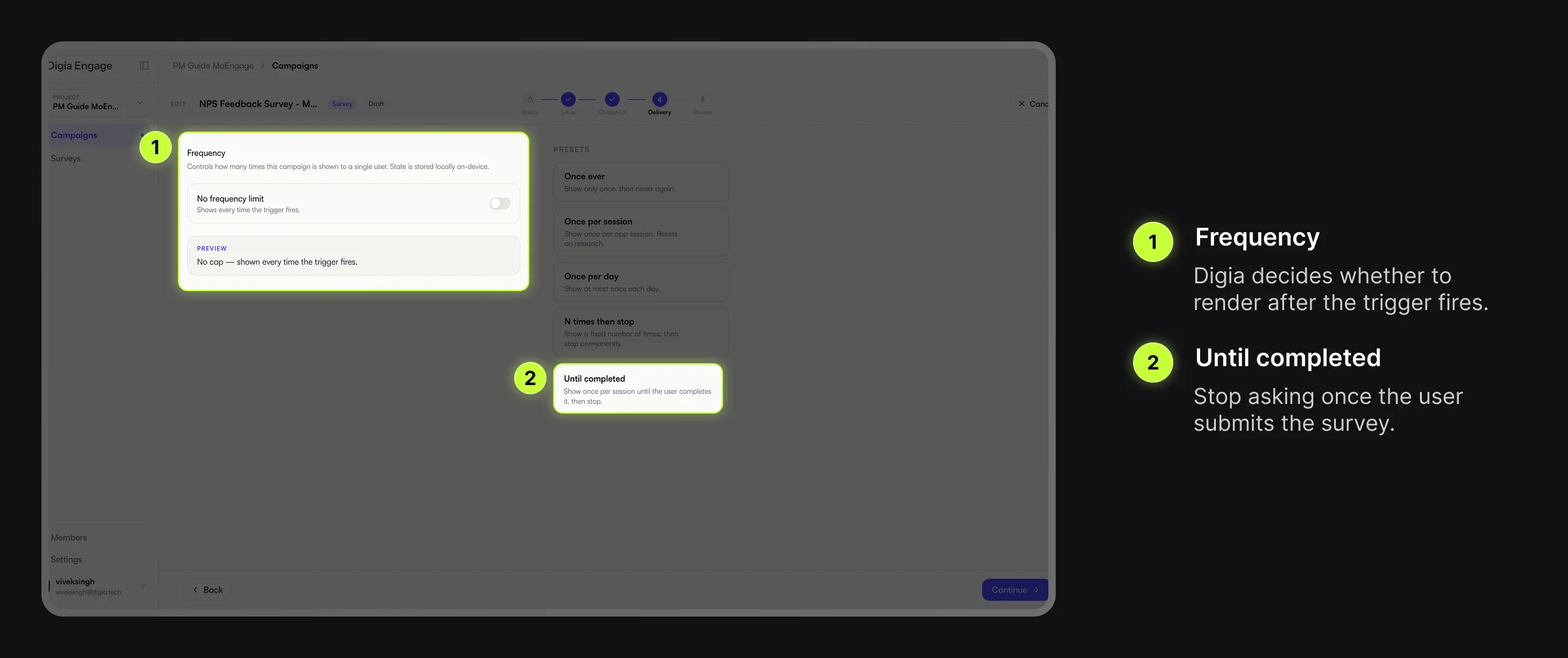
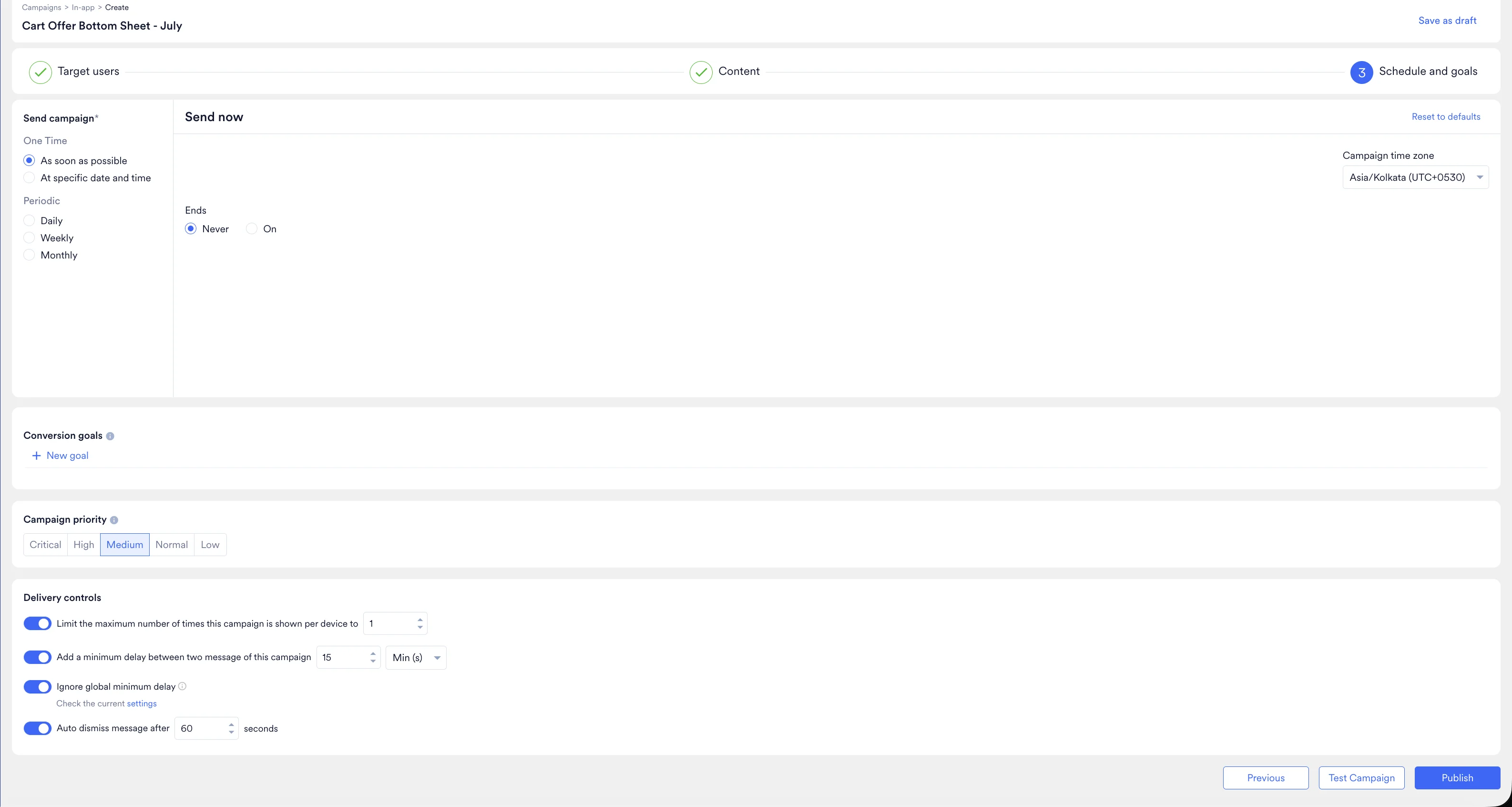
For most feedback Surveys, Until completed is a good starting point. It lets the Survey show again in a later session until the user submits it, then stops.
Review and Copy MoEngage Config
Check that the correct Survey is attached and the frequency cap matches your feedback plan. You can save as draft while MoEngage setup is pending, or activate when ready.
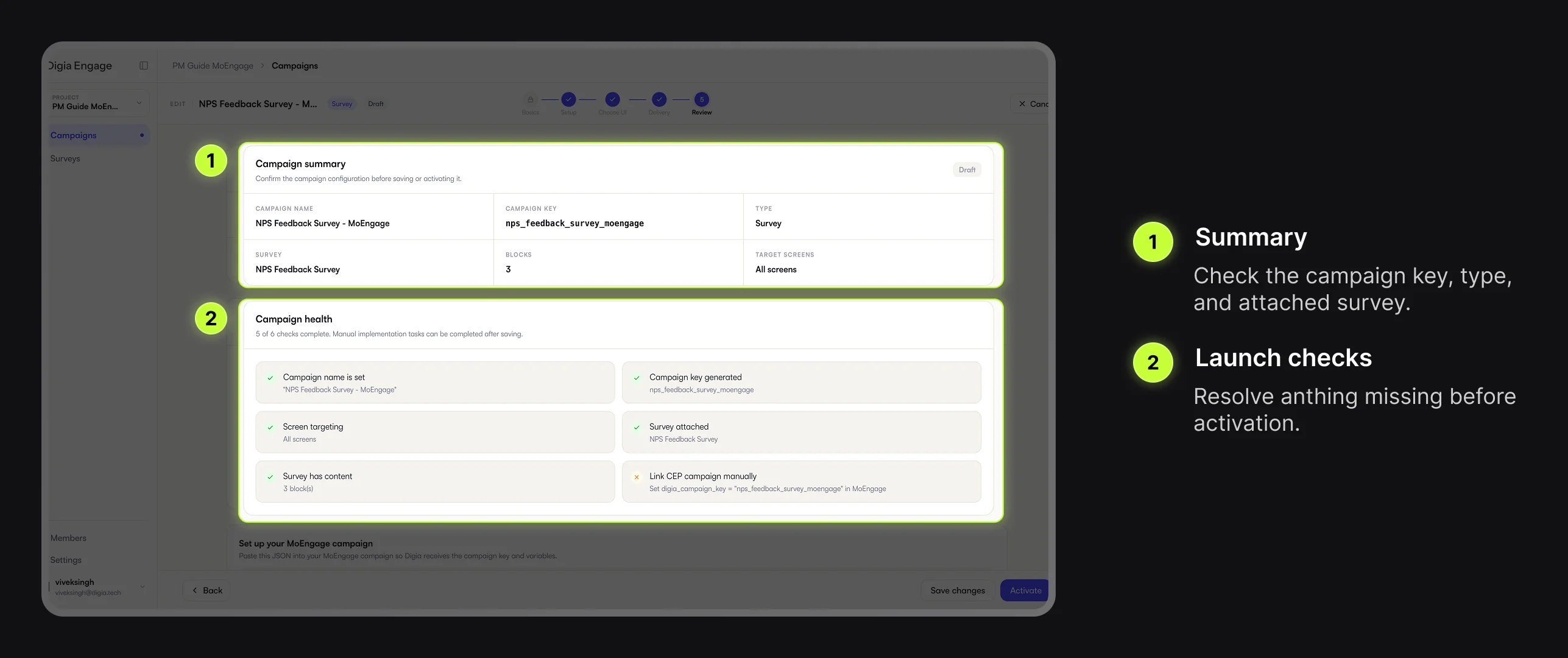
Copy the Digia campaign key from the MoEngage setup section.
Create the MoEngage Self-Handled In-App Campaign
Create a MoEngage Self-Handled In-App campaign. MoEngage decides the audience, trigger event, schedule, and priority. Digia decides what renders after the campaign fires.
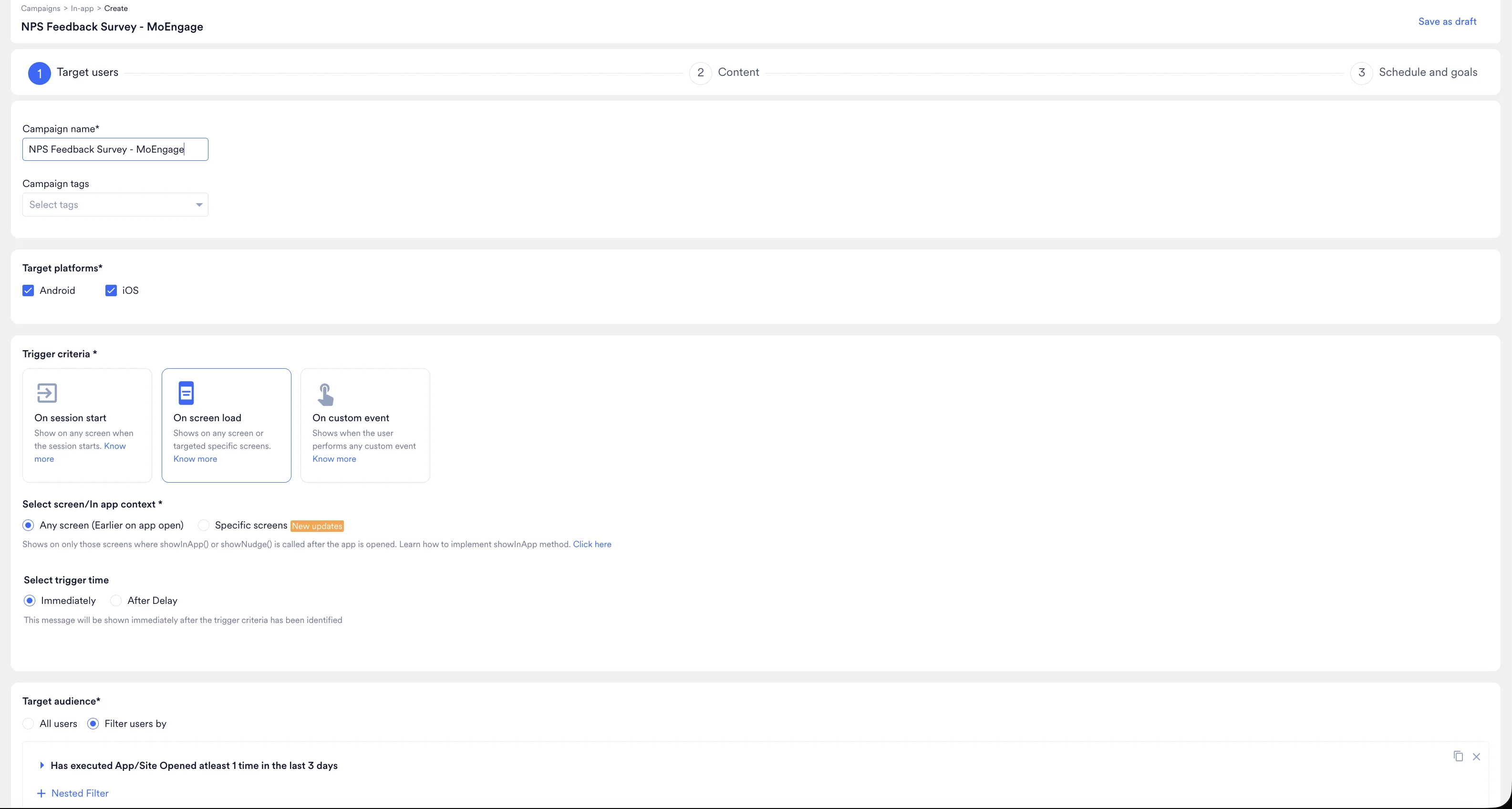
On the content step, switch to Start from scratch if MoEngage opens the template gallery first.
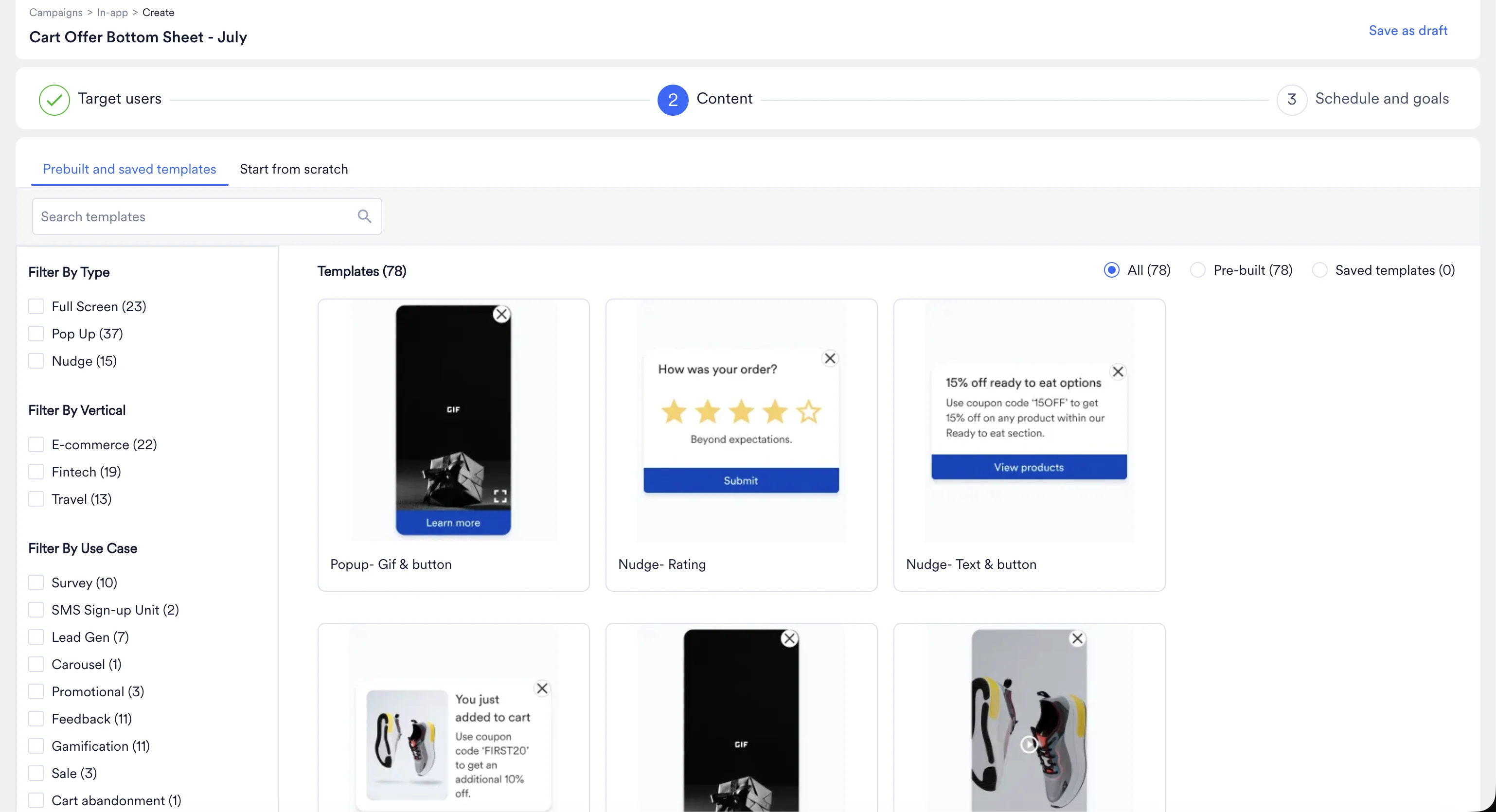
Choose Self-Handled content so MoEngage can pass the Digia Survey campaign key to the app.
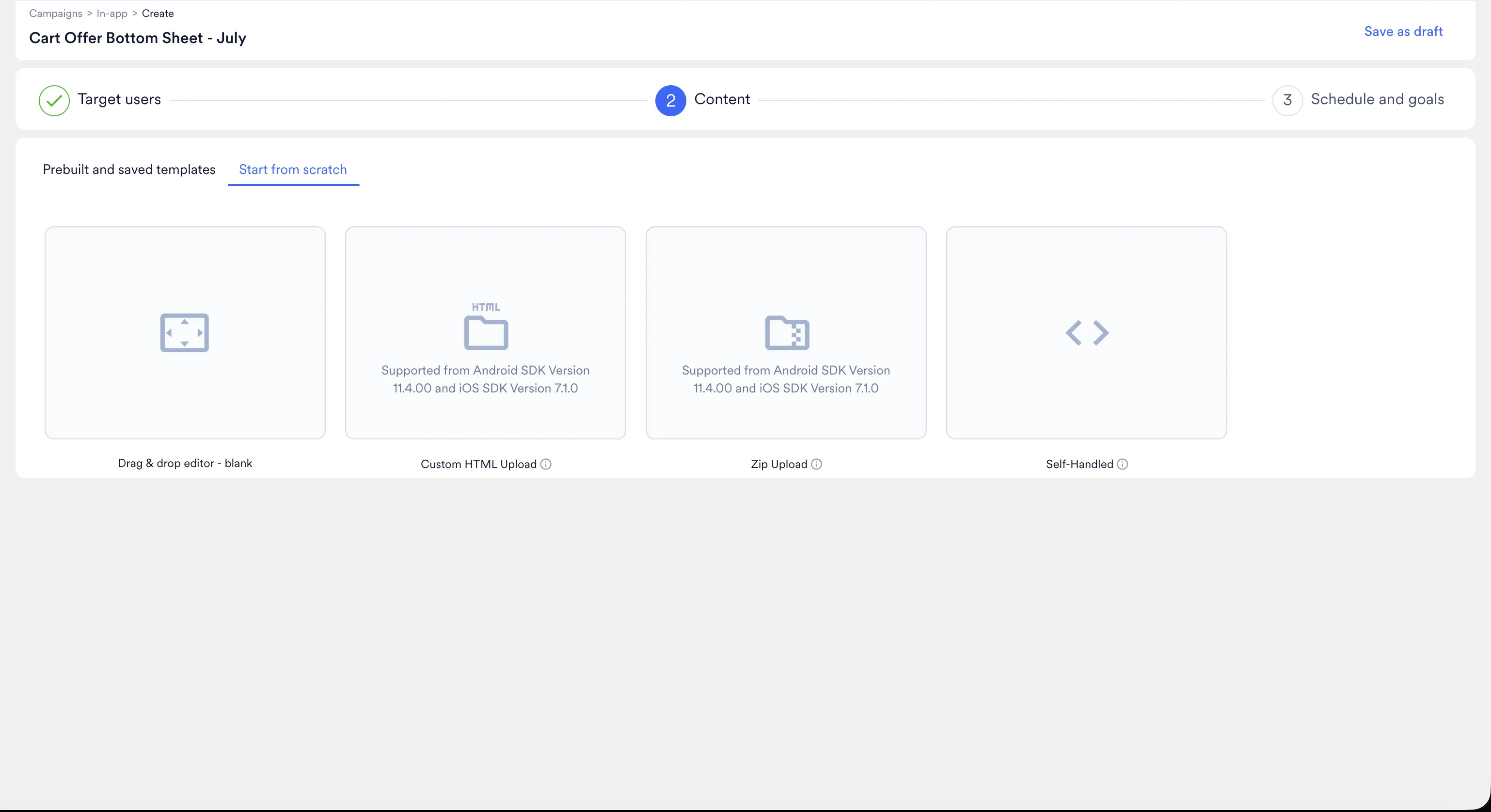
Link MoEngage to the Digia Survey
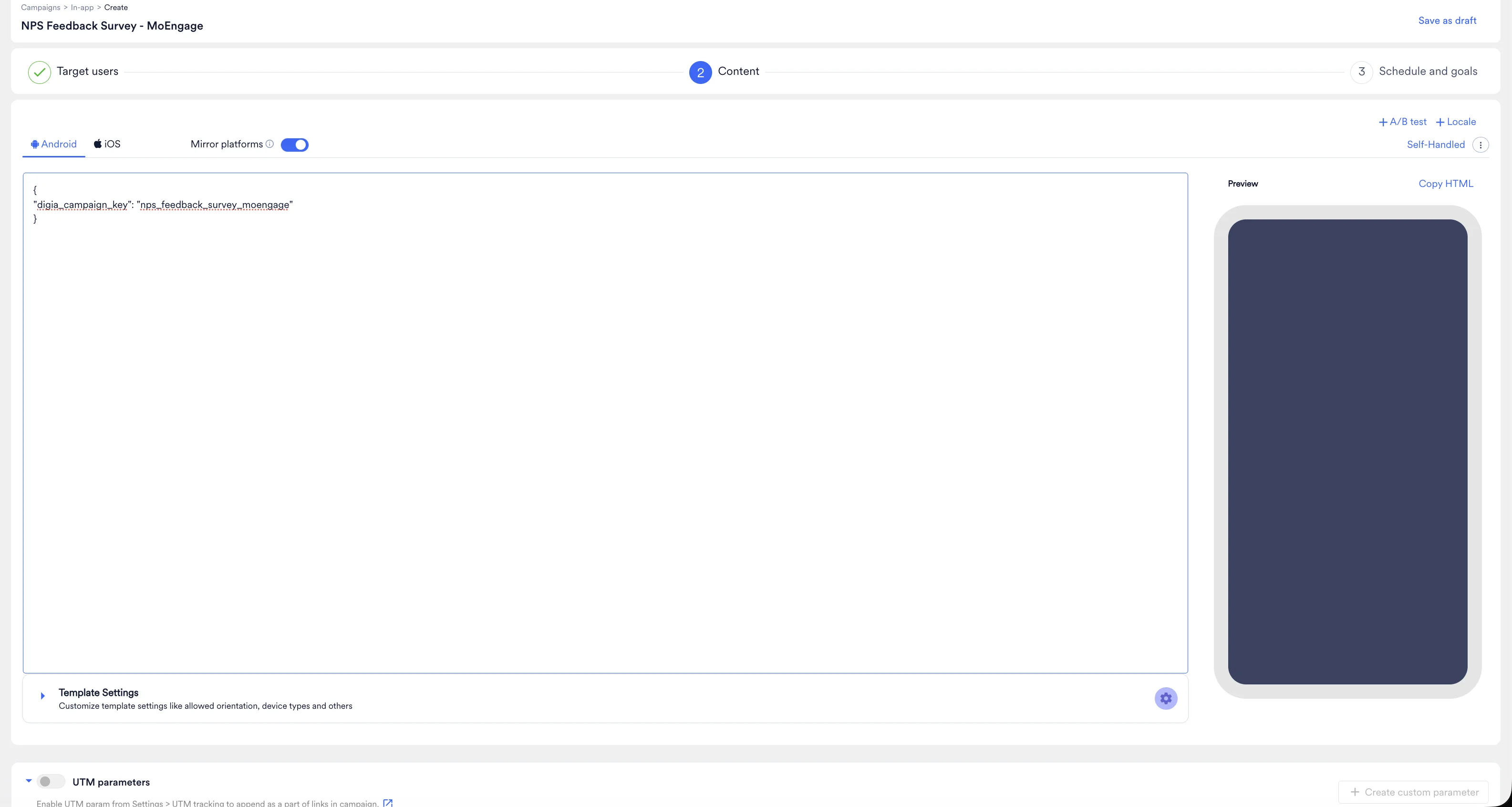
In MoEngage, go to the campaign data or key-value pairs section and add the Digia payload. Survey campaigns currently require only digia_campaign_key.
{
  "digia_campaign_key": "nps_feedback_survey_moengage"
}
Keep the Survey questions, answer options, branching, and result pages in Digia. MoEngage should only carry the campaign key.
Test the Survey End to End
- Use a test audience in MoEngage.
- Activate or preview the MoEngage campaign for that audience.
- Trigger the event from a test device.
- Confirm the Survey appears in the app.
- Select an NPS score and submit.
- Confirm the result page appears.
- Confirm the Survey does not appear again after completion, if you selected Until completed.
If the Survey does not appear, check:
| What to check | Why it matters |
|---|---|
| The Digia campaign is active | Draft campaigns will not render |
| The NPS Survey is attached | The campaign needs saved Survey content |
digia_campaign_key matches exactly | The key is case-sensitive |
| The MoEngage campaign uses Self-Handled In-App | The Digia plugin only receives the expected payload format |
| The user qualifies in MoEngage | MoEngage owns audience and trigger rules |
| Frequency cap has not already been reached | Digia may suppress repeat renders after completion |
MoEngage can sometimes take time to start delivering a newly activated campaign. If the campaign still does not appear after your usual campaign propagation window, reach out to Digia support.
Launch Checklist
- Survey content is complete.
- Digia Survey campaign is active.
- The correct NPS Survey is attached.
- MoEngage campaign uses Self-Handled In-App.
digia_campaign_keymatches the Digia campaign key.- Audience and trigger rules are correct in MoEngage.
- The Survey was tested on at least one real device.