Understanding and Building Surveys
A Survey is a reusable questionnaire built in Digia Engage. It can collect structured feedback, route users through different paths, and show a final result or thank-you page.
For a quick visual walkthrough, watch Creating Native NPS Survey Experiences. If you are updating a Survey that is already live, watch How to Update a Live Survey Campaign in Digia Engage.
The most important thing to remember:
| Object | What it controls |
|---|---|
| Survey | Questions, answer options, branching, result pages, and global survey settings |
| Campaign | When the Survey is eligible to show, how often it can show, and the campaign key used for delivery |
Create the Survey first. Then attach it to a campaign when you are ready to deliver it.
Survey Anatomy
The Survey builder has three working areas.
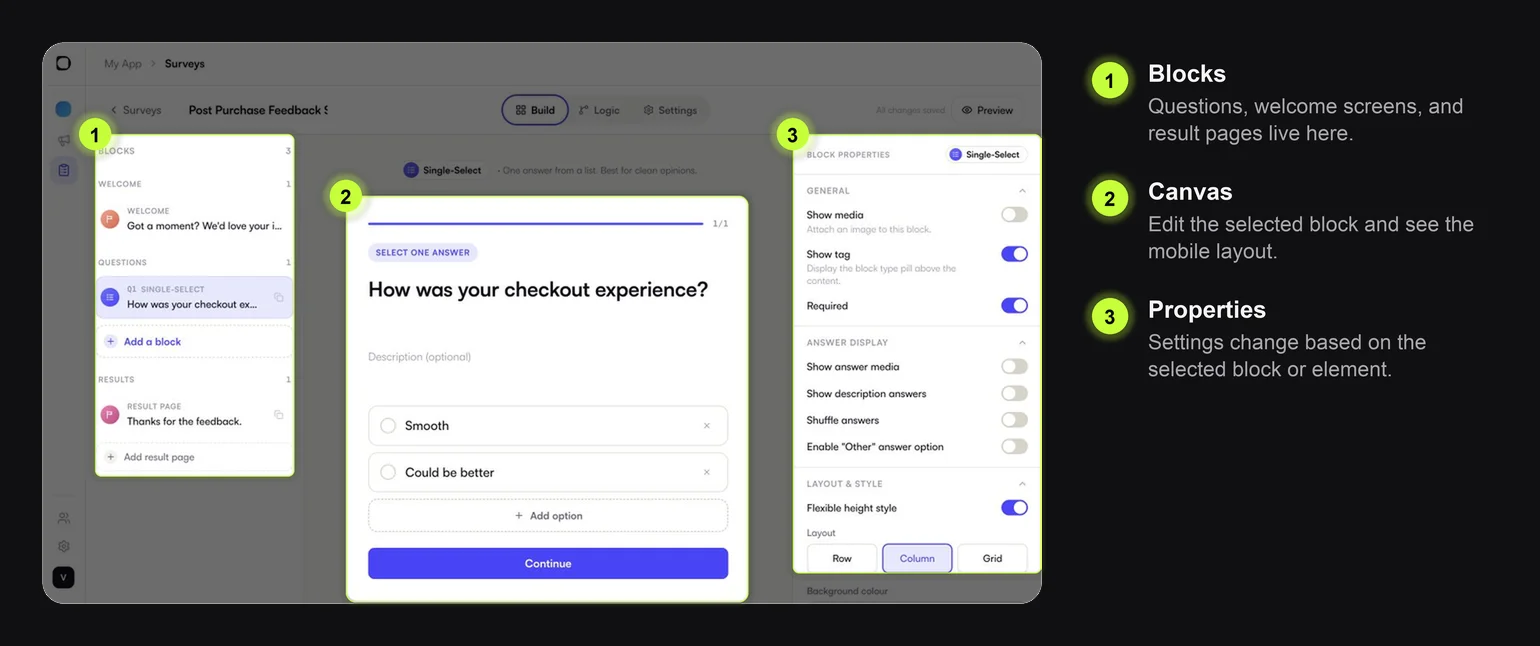
| Area | Use it for |
|---|---|
| Blocks | Add, select, duplicate, and reorder Survey screens |
| Canvas | Edit the selected block and review the mobile layout |
| Properties | Configure the selected block, answer option, media, or style |
Every Survey usually contains:
- an optional welcome block
- one or more question blocks
- one or more result pages
Recommended Workflow
Build Surveys in this order:
- Decide the feedback goal.
- Create the Survey and add the main question blocks.
- Add result pages.
- Set branching only if different answers need different paths.
- Configure global settings such as progress, display type, and close behavior.
- Preview and test each path.
- Attach the Survey to a campaign.
Keep the first version short. A good first Survey is usually 1-3 questions and one result page.
Build a Simple Survey
Start with the goal before opening the builder.
| Goal | Good first question |
|---|---|
| Post-purchase feedback | How was your checkout experience? |
| NPS | How likely are you to recommend us? |
| Feature feedback | Was this feature useful? |
| Churn reason | What made you cancel today? |
Go to Surveys and choose New survey. Use an internal name your team can recognize later, such as:
Post Purchase Feedback Survey
Then add the question blocks that match the answer you need.
| Need | Recommended block |
|---|---|
| One clear answer | Single-Select |
| Multiple reasons | Multi-Select |
| Satisfaction score | Numeric 0-10, Smiley Faces, or Rate It |
| Written feedback | Long Text |
| Follow-up contact |
Use short question copy. On mobile, long questions make the Survey feel heavier than it is.
Every Survey should end with a result page that thanks the user and confirms the feedback was submitted.
When to Use Branching
Use branching when the next question depends on the answer.
Good uses:
- Ask follow-up feedback only if the user gives a low rating.
- Route promoters and detractors to different result pages.
- Skip irrelevant questions based on the user's first answer.
Avoid branching when every respondent should answer the same questions. Linear Surveys are easier to test and usually perform better for quick feedback.
Preview Before Attaching
Use Preview to test the Survey like a respondent.
Check:
- question order
- button labels
- progress behavior
- result pages
- any branching paths
- whether text fits on a mobile screen
Once the Survey feels complete, attach it to a campaign.
- CleverTap: In-App Survey with CleverTap
- MoEngage: In-App Survey with MoEngage
- WebEngage: In-App Survey with WebEngage