


App launch performance creates the first impression, but runtime performance decides whether users stay. An app that opens quickly but stutters during scrolling, typing, or animations still feels broken.
Users may not know what frame drops or thread blocking mean, but they can feel it instantly.
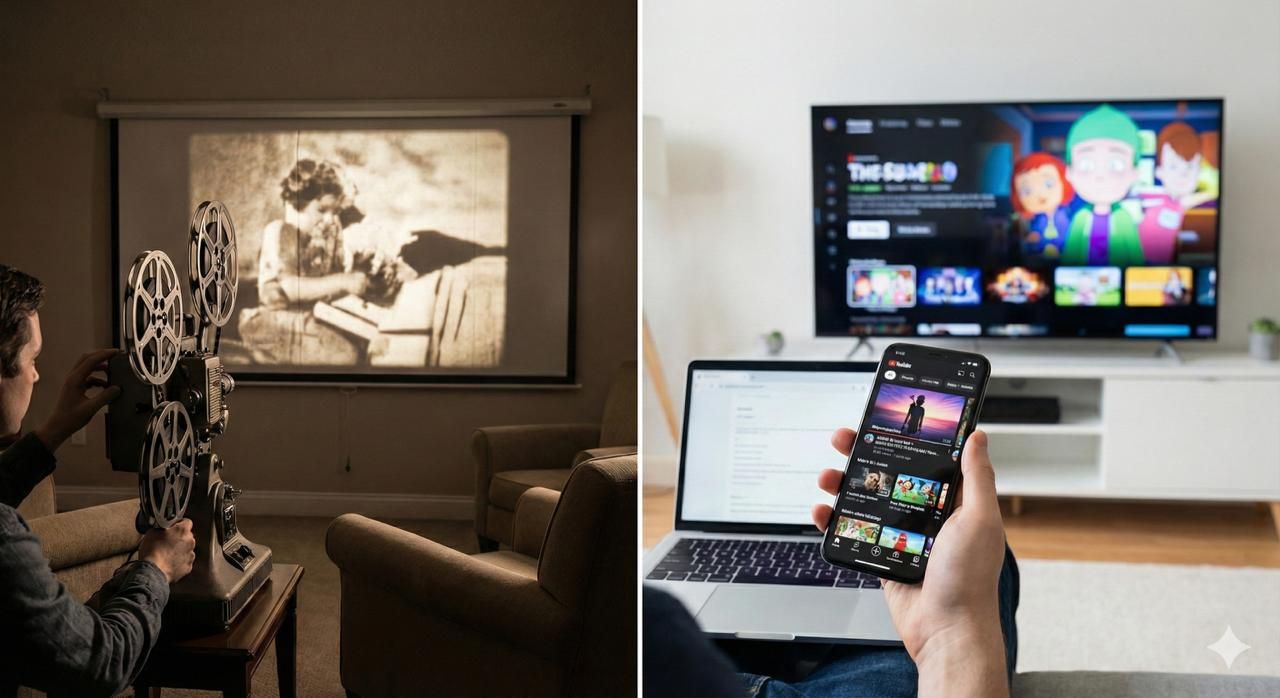
Imagine watching a movie on an old mechanical film projector.
Inside the projector, a long strip of film moves frame by frame in front of a bright light. Each frame is just a still image. But when those images pass in front of the light quickly and consistently, your brain perceives smooth motion.
Now imagine something goes wrong with the mechanism.
Instead of rotating smoothly, the reel starts jerking:
- Sometimes it moves normally
- Sometimes it slows down
- Sometimes it pauses for a split second
- Then it suddenly jumps forward
On the screen, the effect is immediate. Motion becomes uneven. Characters seem to skip positions. Panning shots feel uncomfortable. Action sequences become hard to follow. Even though the film itself hasn’t changed, the experience feels broken.
That’s exactly what happens when a modern app drops frames.
From Film Reels to Digital Frames
Old projectors relied on physical film moving at a consistent speed. Modern devices use digital frames instead. But the principle hasn’t changed.
Your phone or computer screen doesn’t show continuous motion. It displays a rapid sequence of still images. Each image is called a frame.
If those frames appear at a steady rhythm, motion looks smooth. If they appear unevenly, motion looks choppy or unstable.
This rhythm is measured using frames per second, or FPS.
FPS tells you how many frames your app produces every second. A higher and more stable FPS means smoother motion.
For example, at 60 FPS:
- The screen updates 60 times every second
- Each frame has about 16.6 milliseconds to render
On a 120Hz display, that time budget drops to just 8.3 milliseconds. Within that tiny window, the system must:
- Run application logic
- Calculate layouts
- Prepare drawing commands
- Send work to the GPU
- Present the frame to the screen
If any part of that process takes too long, the frame misses its deadline. The screen has nothing new to show, and the user sees a stutter.
Why Motion Consistency Matters More Than Speed
Let’s go back to the projector example.
Imagine two projectors:
Projector A
- Slightly slower than ideal
- But rotates smoothly and consistently
Projector B
- Faster on average
- But constantly jerks, pauses, and jumps
Most people would find Projector A easier and more comfortable to watch. That’s because the human eye is extremely sensitive to irregular motion.
The same principle applies to apps and games. A stable frame rate feels smoother than a fast but inconsistent one.
In practical terms:
- Smooth motion requires matching the screen’s refresh rate
- At minimum, the app should reach about 80% of that rate
For example:
- On a 60Hz display, smooth motion starts around 50–60 FPS
- On a 90Hz display, the target rises to around 72 FPS
- On a 120Hz display, smooth interaction requires closer to 96–120 FPS
Users rarely think in these terms. They just say the app feels slow, glitchy, or unresponsive.
Refresh Rate vs FPS: The Screen and the Projector
In the film projector analogy, there are two separate components:
- The speed at which the film reel moves
- The speed at which the light and shutter display frames
In modern devices, this translates to:
- Refresh rate (Hz): how fast the screen updates
- FPS: how fast the app produces frames
A 120Hz screen refreshes 120 times per second. But if the app only produces 40 frames per second, the screen simply repeats frames. The result still looks choppy.
Smoothness only happens when: App FPS closely matches the display refresh rate.
That’s why some apps feel incredibly fluid on premium devices, while others still feel sluggish on the same hardware.
Why Mobile Apps Drop Frames and Feel Laggy
Frame drops happen when the app cannot finish its work within the available frame time. At 60 FPS, that time budget is 16.6 milliseconds. At 120 FPS, it’s only 8.3 milliseconds. Any task that exceeds that window risks dropping frames.
In practice, jank usually comes from a few predictable sources.
The most common issue is main thread blocking. Most UI frameworks rely on a single main thread to process input, layout views, and trigger rendering. If heavy work runs there, rendering pauses. This often happens during JSON parsing, database queries, network calls, or complex calculations. This behavior is described in the official Android rendering performance guidance Android rendering performance docs.
Layout complexity is another frequent cause. Deep view hierarchies or complex widget trees increase layout time, especially when screens contain too many nested components or lists attempt to render too many items at once.
Large or unoptimized images also slow down rendering. High-resolution assets increase memory usage, slow decoding, and delay frame presentation.
Animations can contribute to jank as well, particularly when they rebuild large parts of the UI, trigger layout recalculations every frame, or perform expensive computations.
Finally, synchronous disk or network operations during interaction can freeze the UI completely. Users experience this as delayed taps, stuttering scroll, or frozen screens.
Memory pressure adds another layer of instability. Frequent allocations can trigger garbage collection, which causes sudden frame-time spikes and inconsistent performance. In most production apps, jank is rarely caused by a single issue. It’s usually the result of several small inefficiencies stacking up on the main thread.
Mobile App Performance Metrics You Should Track
Once you understand what causes jank, the next question is: how do you measure it in a real app?
The most fundamental is frame time, which represents how long it takes to render a single frame. The target depends on the display:
- 60Hz display: under 16.6 ms per frame
- 90Hz display: under 11.1 ms per frame
- 120Hz display: under 8.3 ms per frame
Source: Frame Pacing library, Performance and metrics
Dropped frames are another key signal. These are frames that miss the rendering deadline. High dropped-frame counts usually indicate UI thread blocking, heavy layouts, or inefficient animations.
Jank percentage measures how many frames exceed the target time. Typical thresholds look like this:
- Under 1%: excellent
- 1–5%: good
- 5–10%: noticeable
- Above 10%: poor
- Above 20%: broken experience
Another important metric is the P95 frame time. This represents the slowest 5% of frames. Users are more sensitive to spikes than averages, so P95 is often more useful than mean FPS.
Interaction Latency: The Other Half of Runtime Performance
Frame rate measures visual smoothness, but it doesn’t tell the full story. Interaction latency measures how long it takes for the app to respond to a user action.
This includes:
- Tap to button response
- Swipe to scroll movement
- Input to text appearing
Human perception is extremely sensitive to input delays. Typical thresholds are:
- Under 100 ms: instant response
- 100–200 ms: noticeable delay
- Above 300 ms: frustrating interaction
For example, if a user taps a checkout button and waits 400 milliseconds before seeing a response, they may tap again. That can lead to duplicate actions, failed transactions, or confusion about whether the app is working. Even with high FPS, poor input latency makes the app feel slow.
Why These Metrics Matter for Business Outcomes
Runtime performance isn’t just a technical concern. It has direct business impact.
When scrolling feels inconsistent or interactions lag, users abandon tasks more often. This directly affects session duration, task completion rates, conversion flows, app store ratings, and long-term retention.
In commerce apps, even a 200–300 millisecond delay after tapping “Buy” can reduce conversion. In social or messaging apps, scroll stutter shortens session time. Over weeks, these small frictions accumulate into lower engagement, worse ratings, and higher uninstall rates.
Tools and Practical Ways to Measure Runtime Performance
Metrics are useful in theory, but they only matter if you can see them in a running app. Most platforms already provide built-in tools that expose frame timing, input latency, and rendering bottlenecks.
The goal of these tools is not just to see an FPS number, but to understand which part of the frame pipeline is slowing down.
Android
On Android, frame timing and jank can be measured through the Android Studio profiler or directly from the command line. The Android Studio GPU Rendering Profiler shows frame times visually, helping identify spikes during scrolling or animation.
You can explore profiling options in the official Android performance inspection tools.
For quick diagnostics, you can also use adb:
adb shell dumpsys gfxinfo com.example.app | grep "Janky frames"This command reports total frames rendered, the number of janky frames, and the percentage of frames that missed deadlines. It’s often the fastest way to verify runtime smoothness during testing.
iOS
On iOS, runtime performance is typically analyzed using Xcode Instruments. The most useful tools are Core Animation, which shows FPS and frame timing, and Time Profiler, which identifies CPU-heavy operations blocking the main thread.
These tools help detect slow animations, spot layout bottlenecks, and identify expensive functions running on the main run loop.
You can explore profiling options in the official Analyzing the performance.
Flutter
Flutter provides built-in runtime profiling tools that expose frame build and rasterization times.
You can enable the performance overlay directly from the command line:
flutter run --profile --show-performance-overlayFor deeper analysis, use the DevTools timeline:
flutter run --profile --trace-skiaWithin Flutter code, you can also measure frame timings:
WidgetsBinding.instance.addPostFrameCallback((_) {
  final frameTime = DateTime.now();
  debugPrint('Frame rendered at $frameTime');
});
These tools help you understand performance during development. But real users run your app on very different devices and conditions, so how will you measure then? Well firebase comes in hand for measuring Runtime Performance on Release App.
Measuring Runtime Performance in Production with Firebase
Local profiling tools are useful during development, but they only show performance on a developer’s device. Real users run your app on hundreds of device models, OS versions, and network conditions. That’s where production monitoring becomes essential.
Firebase Performance Monitoring collects performance data from real user sessions automatically. Instead of manually profiling, you get aggregated insights across your entire user base.
Firebase Performance Monitoring documentation explains how performance data is collected automatically from real user sessions.
It tracks several runtime signals, including:
- App start time
- Screen rendering performance
- Network request latency
- Slow or frozen frames (Android)
- UI responsiveness metrics
On Android, Firebase reports:
- Slow frames: frames taking longer than 16 ms
- Frozen frames: frames taking longer than 700 ms
These metrics help identify:
- Screens that stutter on low-end devices
- Interactions that cause UI freezes
- Performance regressions after releases
Because the data comes from real users, teams can:
- Compare performance across devices
- Detect problems in specific regions
- Track improvements after optimizations
A typical workflow looks like this:
- Use local tools to reproduce and fix issues.
- Use Firebase to monitor performance across real users.
- Track trends after each release.
Local tools tell you why frames are dropping.
Firebase tells you where and how often it happens in the real world.
How to Improve Runtime Smoothness in Mobile Apps
Regardless of platform or framework, smooth apps tend to follow the same principles.
The main thread should remain free to handle input, layout, and rendering. Heavy computation belongs on background threads or isolates. For example, if a checkout screen parses a large JSON response on the main thread, users will feel a delay between tapping “Pay” and seeing confirmation.
Large tasks should be broken into smaller chunks so they don’t block frame rendering. A search screen that rebuilds the entire UI on every keystroke will introduce input lag, even on high-end devices.
Complex views and features should be loaded only when needed. Lazy loading prevents the app from spending frame time on elements the user hasn’t interacted with yet.
Finally, unnecessary UI updates should be avoided. Every rebuild or redraw consumes time from the frame budget, and small inefficiencies often accumulate into noticeable stutter.
The Real Meaning of Smoothness
Users don’t measure FPS. They measure whether the app feels stable, predictable, and responsive.
When an app scrolls smoothly, responds instantly, and animates consistently, it feels reliable. When frames drop or interactions lag, taps feel ignored, screens feel unstable, and users begin to abandon flows.
Smoothness isn’t just a rendering metric. It directly shapes user behavior and trust.
Key Takeaways
Runtime performance defines the day-to-day user experience. Smoothness depends on how closely the app’s frame rate matches the display’s refresh rate. Frame time, jank percentage, and P95 frame time are core indicators of UI health, while interaction latency determines how responsive the app feels.
Most performance problems stem from main thread blocking, heavy layouts, unnecessary UI updates, or memory pressure. Fixing these issues improves not just visual smoothness, but also engagement, retention, and conversion.