

TL;DR
- MoEngage keeps deciding who sees an in-app campaign and when. Digia only changes what is drawn on screen, using native components instead of MoEngage's WebView.
- The handoff runs through MoEngage's Self Handled In-App NATIV template. MoEngage delivers a payload to the app, and the Digia plugin reads a
digia_campaign_keyfrom it. - That key points to a campaign built in the Digia Engage dashboard. Digia pre-fetches those campaigns at startup, so nothing is fetched over the network at the moment of display.
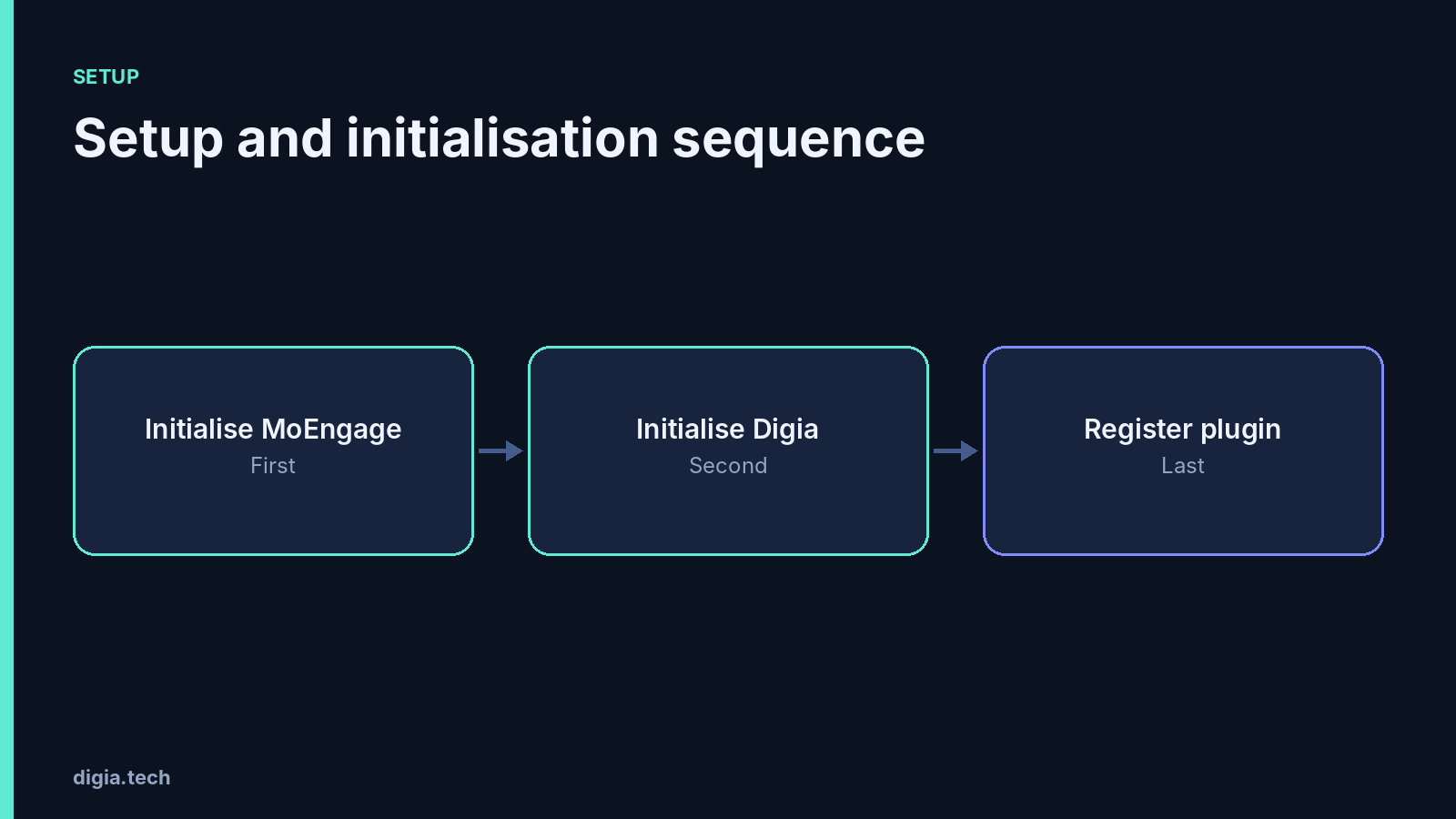
- Setup order matters. MoEngage initialises first, then Digia, then the plugin. Getting this wrong is the most common reason campaigns never appear.
- Self Handled campaigns put impression and click reporting on the app, not on MoEngage. Digia's docs describe events flowing back to MoEngage, but public detail on exactly which events and how is thin, and this article says where that is the case.
- Some of the marketing claims (segment mirroring, shared attributes) are not visible in the developer docs. Test them before you plan around them.
Sourcing note: Every technical point comes from Digia's developer docs, the package listing on pub.dev or MoEngage's own documentation, linked where used. Where public documentation is silent or inconsistent, the article says so instead of guessing.
The Core Mechanism: A MoEngage Payload That Renders as a Digia Component
Most explanations of this integration start with the plugin. The mechanism is easier to understand if you start with MoEngage's side.
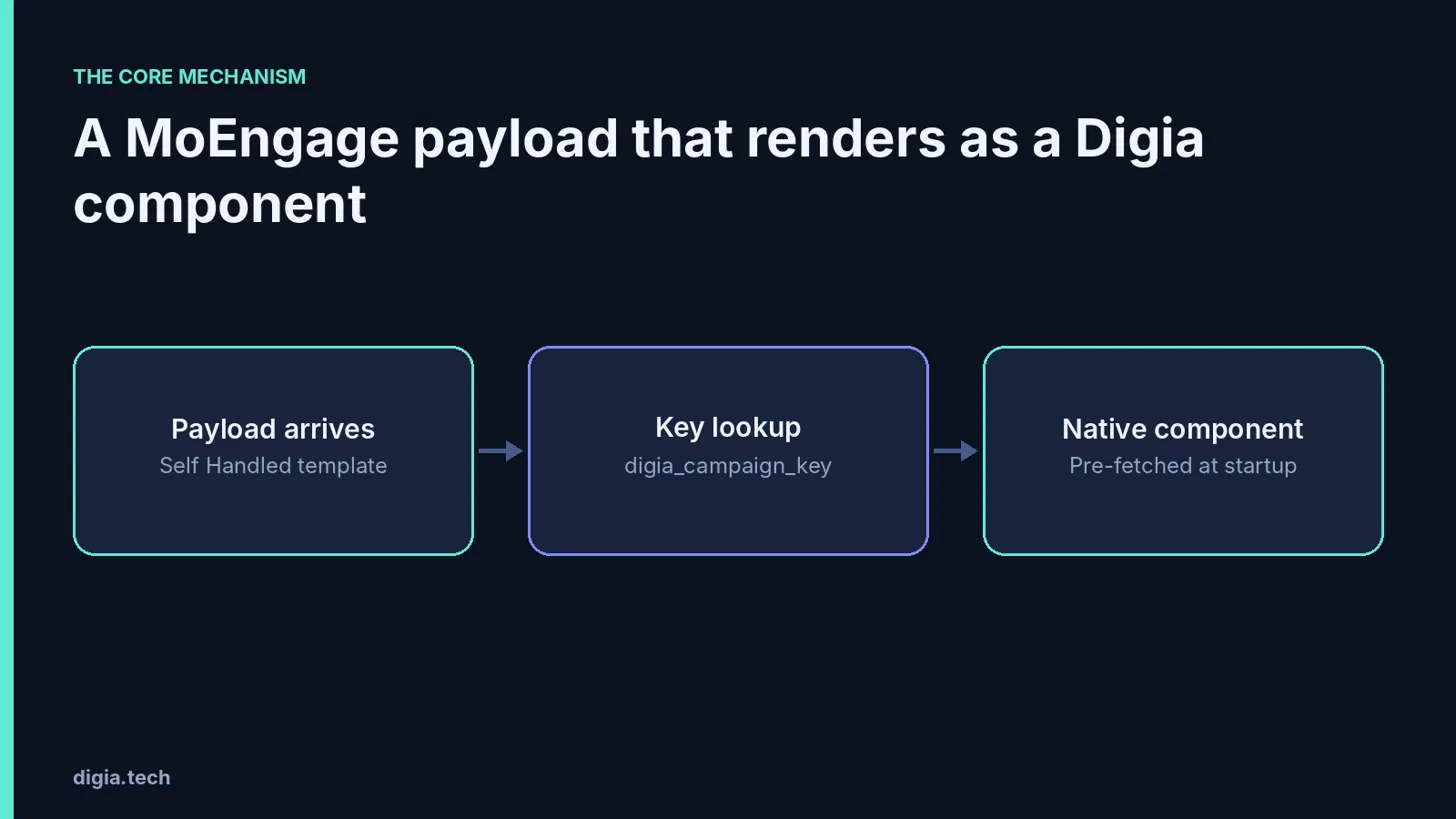
MoEngage offers a template called Self Handled inside its In-App NATIV campaign type. When a Self Handled campaign triggers, the MoEngage SDK does not draw anything. It hands the app a payload and waits for the app to build whatever UI it wants. That is the hook the integration uses, and it is documented for each platform: Flutter, Android, iOS and React Native.
The payload carries a single key that matters to Digia, digia_campaign_key. A team sets it as a key-value pair in the MoEngage campaign editor (MoEngage documents how key-value pairs work in in-app campaigns). The same key identifies a campaign a team designed separately in the Digia Engage dashboard. Digia's developer guide for MoEngage describes the flow in one line: MoEngage campaign, plugin bridge, Digia renders, events back to MoEngage.
In practice that means the following happens when a user qualifies:
- MoEngage evaluates the audience, trigger, priority and delivery controls exactly as it always has.
- The SDK delivers the Self Handled payload to the app.
- The Digia plugin reads
digia_campaign_keyand looks it up in the local cache of campaigns Digia pre-fetched when the SDK initialised. - Digia renders the matching component natively.
Because the campaign is already on the device by step 3, display does not wait on a network call. This is the point of the design, and it is also why the app can show a bottom sheet or an inline carousel that looks like part of the screen instead of a web page layered on top. Digia's broader architecture is covered in What Is Digia Engage.
Why MoEngage's Own Rendering Is the Problem Being Solved
It helps to be precise about what this replaces. Standard MoEngage in-app templates render in a WebView, which is why they struggle with native fonts, native motion and anything that needs to sit inside a screen's layout instead of over it. Our earlier pieces go through the details in MoEngage In-App Messaging: An Honest Review and Fixing MoEngage In-App UI Limitations. The same pieces also note that audience and frequency updates in MoEngage can lag by roughly 15 to 20 minutes.
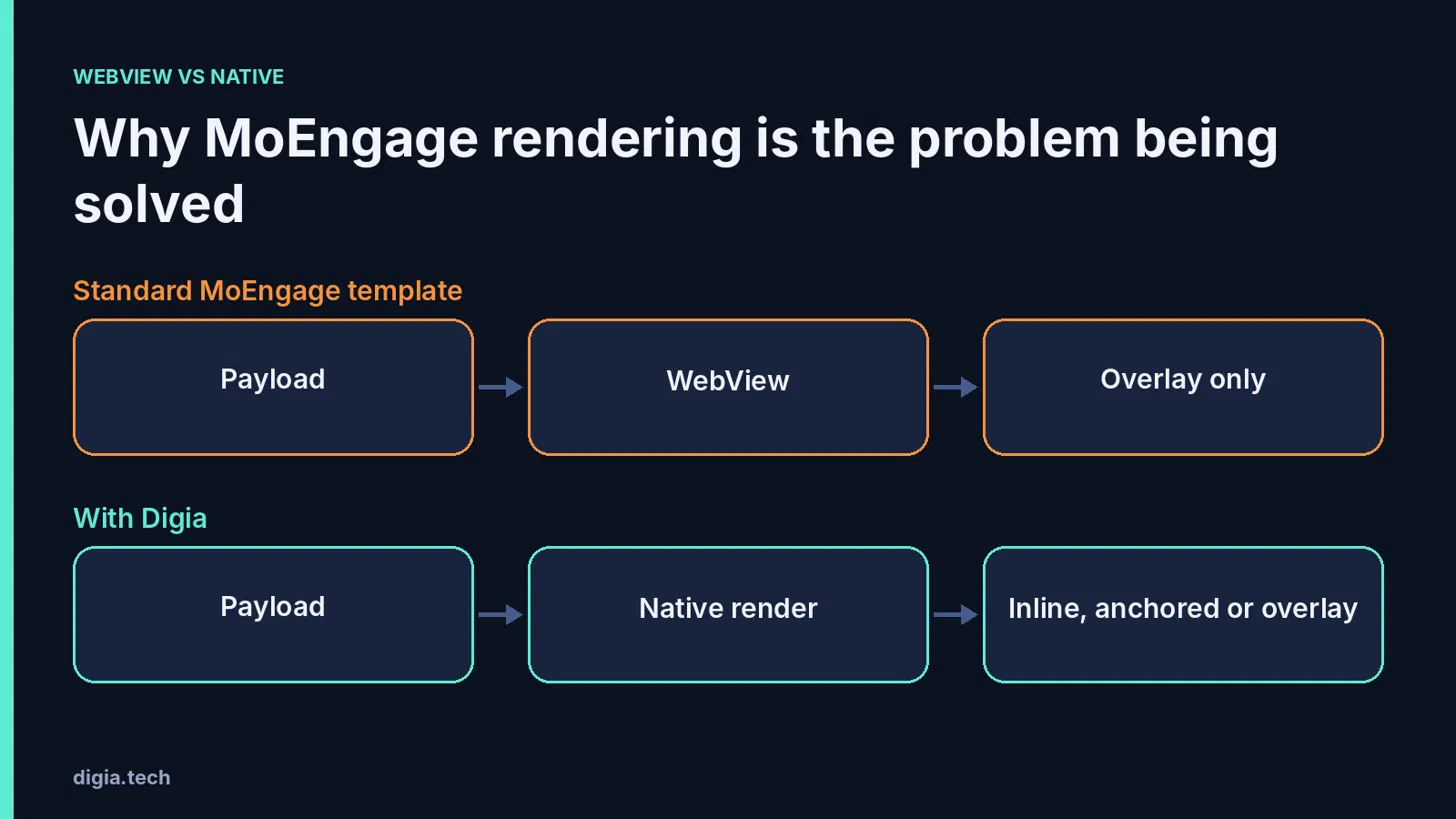
That lag does not go away with this integration, and it should not be expected to. Targeting stays inside MoEngage. The integration fixes what the user sees, and it leaves MoEngage's timing behaviour as it is.
What Digia Adds Beyond a Single Popup
The Self Handled template gives the app a payload. What the app does next is where Digia's primitives come in. Digia's core concepts page describes them, and the MoEngage guides use the same set:
DigiaHostrenders overlay experiences such as nudges, guides and surveys.DigiaSlot(orDigiaSlotViewon native platforms), identified by aplacementKey, renders inline content that sits within a screen, such as a carousel between two sections of a home page.DigiaAnchor, identified by ananchorKey, attaches tooltips and spotlights to a specific widget.
This is the biggest practical difference from a stock MoEngage setup. A WebView overlay can only appear on top of a screen. Digia's slots and anchors let a MoEngage-triggered campaign live inside the layout or point at a particular button. The user guides show the two common patterns, a bottom-sheet nudge and an inline carousel, and the index of MoEngage user guides lists the rest.
The Plugin Contract
The MoEngage plugin implements the same shared interface Digia uses for its other CEP integrations, covered in the developer integrations overview. The same DigiaCEPPlugin-style contract sits behind the CleverTap and WebEngage plugins. For a team, that means the dashboard, campaign editor and analytics behave the same way whichever CEP they sit on. It also means a team that later changes CEPs does not rebuild its campaign designs. Our WebEngage walkthrough covers the same contract from that side.
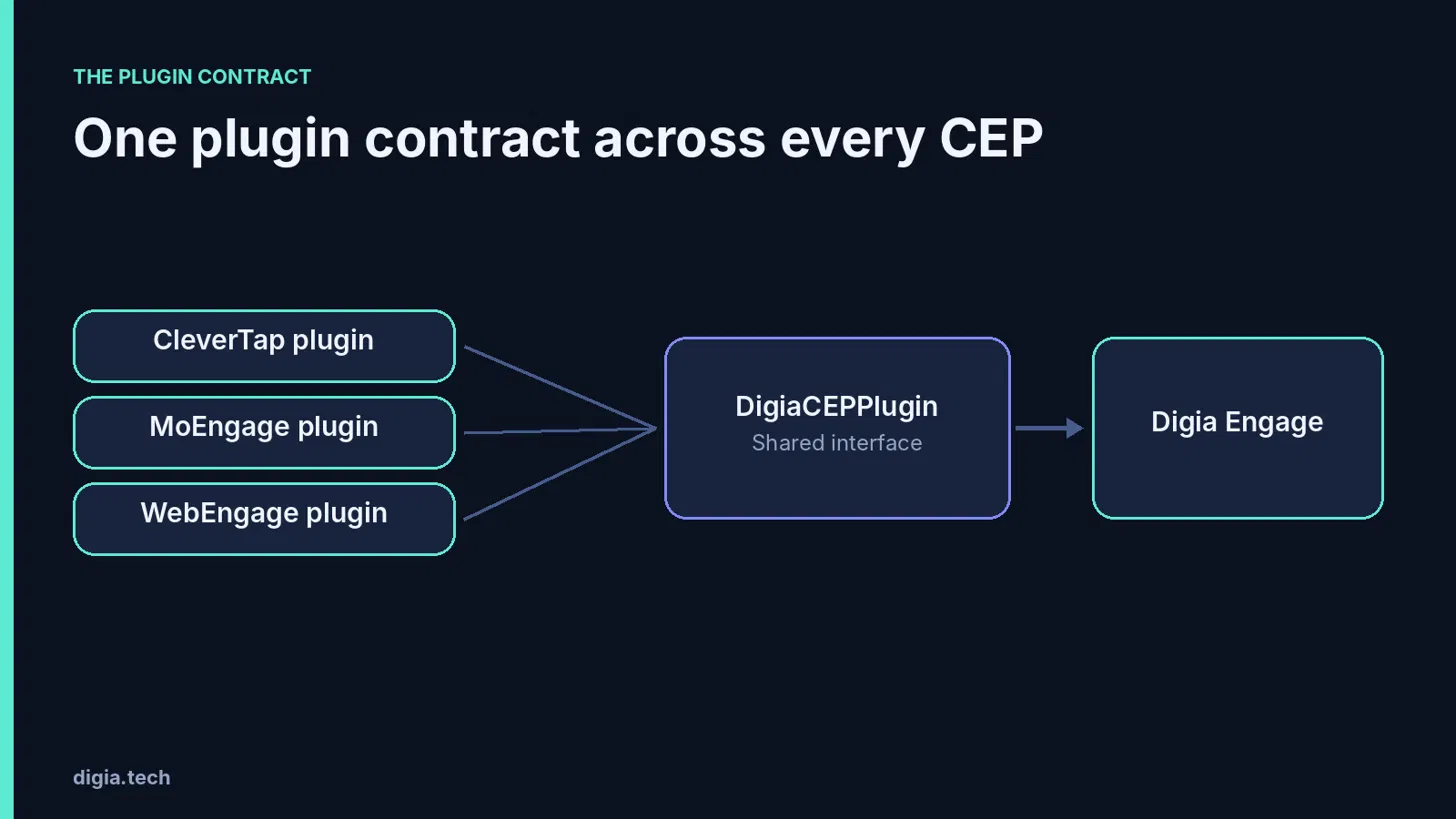
One thing to flag honestly. The WebEngage plugin is documented as four named components, a plugin class, an SDK bridge, an event bridge and a payload mapper. For MoEngage, the public developer guide describes the flow but does not break it down in the same detail, and the architecture file in the repository was not retrievable when this article was researched. Anyone who needs the internal class structure should read the package page on pub.dev and the source directly.
Setup and Initialisation Sequence
Order is the part of setup that most often goes wrong, so it is worth stating it plainly.
Prerequisites. A Digia access key from the Digia Engage dashboard, a MoEngage workspace with its App ID and data center region, and the MoEngage SDK already installed in the app. The Digia plugin sits on top of an existing MoEngage integration and does not replace it.
Installation. On Flutter, the plugin is digia_moengage_plugin on pub.dev, installed alongside digia_engage. Android and iOS packages are listed in Digia's integrations hub.
Initialisation order. The documented sequence is:
- Initialise MoEngage using its own SDK instructions. MoEngage documents this per platform, for example the Android SDK initialisation guide.
- Initialise Digia with the access key.
- Register the Digia MoEngage plugin only after both of the previous steps have finished.
Registering the plugin before MoEngage is ready is the usual cause of "the campaign triggered in MoEngage and nothing showed up". It is also worth confirming the data center. MoEngage workspaces are tied to a region, and a mismatch between the region configured in the app and the one the workspace lives in produces symptoms that look like Digia problems.
Two documentation gaps to know about. The version requirements Digia lists for MoEngage and the versions shown on pub.dev did not agree when this was researched, and the pub.dev package was at a 2.0.0 release while an installation snippet in the docs still showed ^1.0.0. Both look like documentation lag, though that is an inference. Either way, pin versions from the package page and test on a real build before assuming the docs are current.
Identity and Logout
Campaign delivery depends on MoEngage knowing who the user is, and Digia analytics depend on Digia knowing the same thing. These are two separate calls and both are needed.
On the MoEngage side, the app identifies the user through MoEngage's own identity APIs (see MoEngage's user attribute and identity documentation). On the Digia side, the app calls Digia.setUserId when a user signs in and clearUserId when they sign out, as described in Digia's user identity reference.
Skipping the Digia call does not stop campaigns from rendering. It makes Digia's analytics unattributable, which is a quiet failure that shows up weeks later when someone asks why a campaign's numbers do not match MoEngage's. Skipping clearUserId on logout is worse on shared devices, since the next person to sign in inherits the previous user's analytics identity.
Screen Tracking and Silent Drops
MoEngage can trigger a campaign on screen load, but a MoEngage trigger firing and a Digia component appearing are two different events. For overlay campaigns the app has to tell Digia which screen is current. The screen targeting reference describes Digia.setCurrentScreen and a DigiaNavigatorObserver that does this automatically for Flutter navigation.
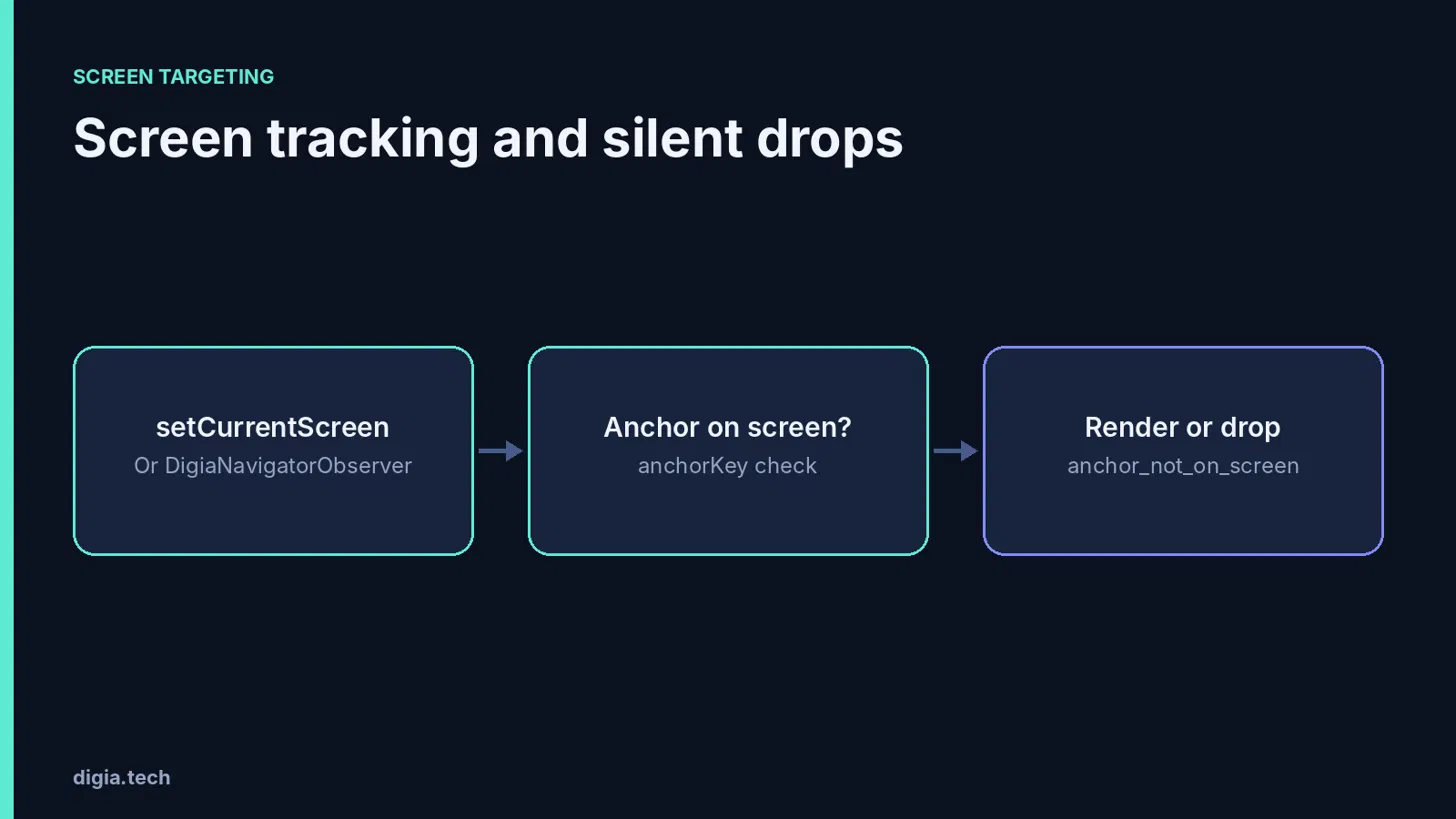
Anchored campaigns have an extra failure mode. If a campaign points at a DigiaAnchor with a given anchorKey and that widget is not on the current screen, the campaign is dropped. Digia reports the reason as anchor_not_on_screen, and the user sees nothing. This is correct behaviour, because pointing at a button that is not visible would be worse. It does mean a team should test anchored campaigns on each screen state they can appear in, including scrolled positions and empty states, before launch.
Day-to-Day Workflow
After the one-time developer setup, a product manager or marketer runs the loop without engineering. It looks like this:
- Design the experience in the Digia dashboard, choose the placement (overlay, slot or anchor) and note the campaign key.
- Create a MoEngage In-App NATIV campaign using the Self Handled template and add
digia_campaign_keyas a key-value pair. - Set audience, trigger, priority and delivery controls in MoEngage, as for any other campaign.
- Test with Digia's Live Testing, which uses a QR code to preview a campaign on a device without publishing it.
- Publish in MoEngage.
The user guides for the bottom-sheet nudge and the inline carousel each include a checklist for this loop. Both also describe passing variables as JSON so one Digia design can serve several MoEngage campaigns with different copy or offers.
That last point deserves emphasis. A team that designs one nudge and passes different variables per campaign avoids rebuilding the same layout five times. Our checklist for launching a campaign in under 24 hours uses this approach.
What Actions a Digia Component Can Take
A rendered component is not only a picture. Digia's campaign actions reference lists what a tap can do: open a URL, dismiss, move to the next or previous step, share, copy, request a store review, or pass a custom key-value payload back to the app for it to handle. Multi-step guides and surveys use next and previous. The custom key-value action is the escape hatch for anything specific to an app, such as opening a particular screen with parameters.
Delivery Timing: What MoEngage Still Controls
Because MoEngage owns delivery, MoEngage's delivery rules apply to Digia-rendered campaigns as they do to any other. The campaign delivery mechanism documentation is worth reading in full. The points that matter most here:
- Sync interval. Campaigns sync to the device on a 15-minute interval that is counted between app opens. A campaign published a minute ago will not reach a user who opened the app five minutes ago.
- Triggers. Session start, screen load, custom event and push click.
- Priority. When several campaigns qualify for the same trigger, priority decides which is shown.
- Controls. Campaign minimum delay, global minimum delay, maximum times shown, a daily frequency cap per device, auto dismiss and an audience limit.
Anyone who expects an instant, real-time change after hitting publish will be confused by the sync interval. It is a MoEngage property and it is the same with or without Digia. For teams building suppression rules on top, our piece on when not to show a nudge covers what to layer in.
Analytics: Who Reports What
This is the area where public documentation is thinnest and the point most worth checking in your own build.
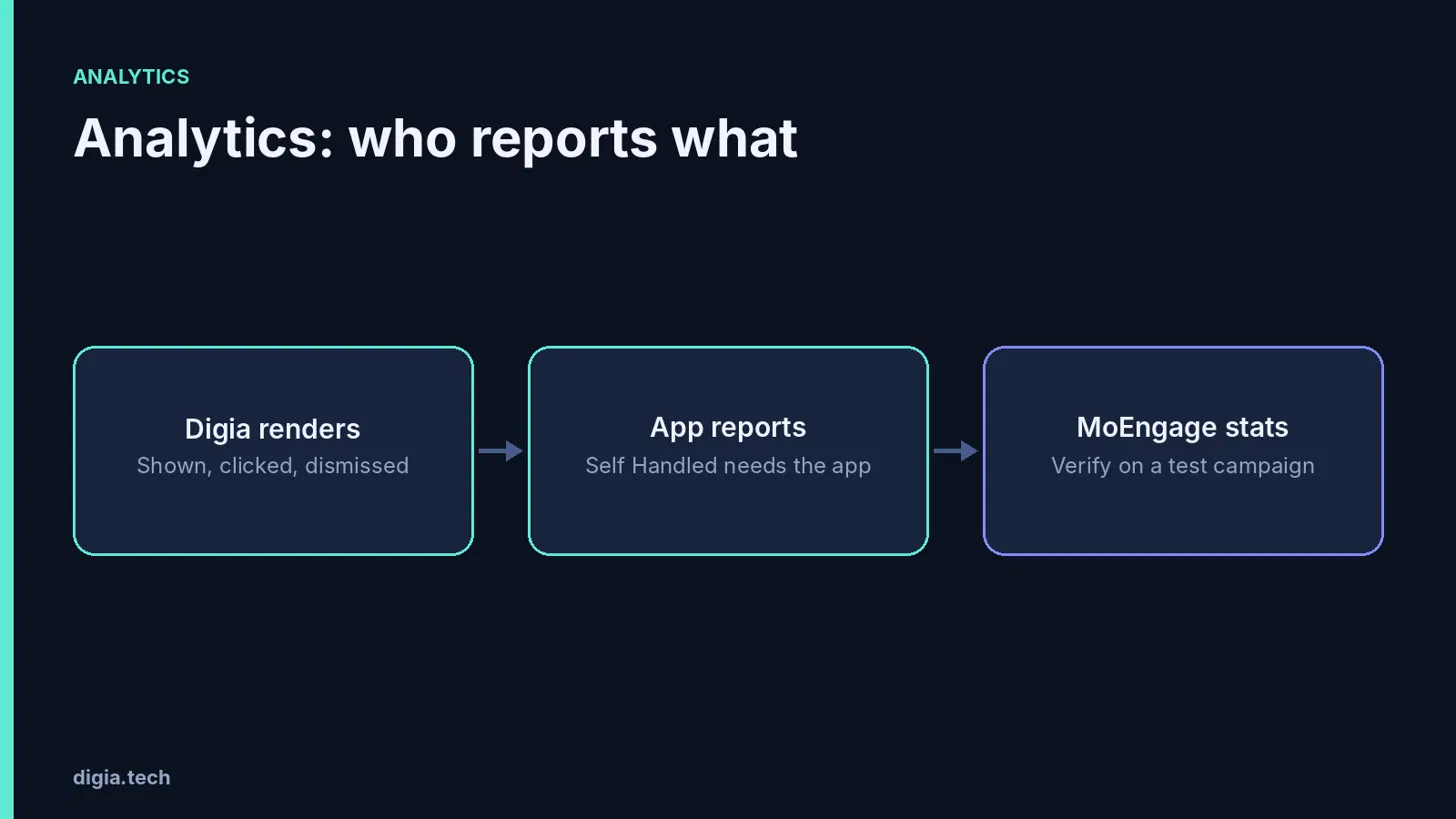
With a Self Handled campaign, MoEngage's documentation is explicit that the app is responsible for reporting when a campaign was shown, clicked or dismissed. MoEngage does not see the UI, so it cannot infer those events. Digia's developer guide describes events flowing back to MoEngage, which is what you would expect the plugin to be doing on the app's behalf.
What the public documentation does not spell out is the detail: which events are sent, under what names, with which attributes, and whether they populate MoEngage's standard in-app campaign statistics or appear as separate events. Before relying on MoEngage's campaign dashboard for performance reporting, run a test campaign and compare three things: the Digia dashboard numbers, the MoEngage campaign statistics and the raw events in MoEngage's user profile. If they do not agree, you have found out cheaply, and it is a good conversation to have with Digia's team.
Troubleshooting
When a campaign does not appear, work through these in order:
- Plugin registration order. Was the plugin registered after both MoEngage and Digia finished initialising?
- Payload. Is the template Self Handled, and does the payload actually include
digia_campaign_keywith a key that exists in the Digia dashboard? - Sync. Has the 15-minute sync interval passed since the campaign was published and the app was last opened?
- Delivery controls. Has a frequency cap, minimum delay or max-times-shown limit already been hit on that device?
- Screen state. Is Digia aware of the current screen, and for anchored campaigns, is the anchor widget actually on screen?
- Region. Does the data center in the app match the MoEngage workspace?
- Test versus live. Is the build pointing at the MoEngage test workspace while the campaign was created in live, or the reverse?
Most failures turn out to be one of the first three.
Topics Not in the Brief That Teams Should Know
Marketing claims versus developer docs. The Digia MoEngage integration page describes mirrored segments and shared user attributes. The developer documentation describes a payload-only model where MoEngage retains all targeting and Digia receives a key. Both can be true if segment mirroring is a separate capability, but the developer guide does not document it. Ask which one applies to your plan before building a workflow that depends on it.
One campaign per trigger. MoEngage's delivery logic decides a single winner when several campaigns qualify at the same moment. If your plan assumes a welcome nudge and a feature spotlight can both appear on the same screen load, they cannot. Sequence them with priority and delivery controls instead.
Licence. The package listing and the source repository did not agree on the licence when this was checked. One showed a BUSL-1.1 licence and the other did not clearly state one. If the licence matters for your legal review, confirm directly with Digia and read the repository's licence file.
Debugging cost. A native component cannot be inspected like a web page. Digia's Live Testing is the supported route. Teams that skip it and test only in production campaigns tend to spend a lot of time on the sync interval.
Rollback. If a Digia-rendered campaign misbehaves, the fastest fix is to pause the MoEngage campaign. That stops delivery of the payload. Editing the Digia design is the second option. Because designs are server-driven, an update does not need an app release, which is the topic of our piece on git-style continuous deployment for low-code.
Not a replacement for planning the data flow. Adding a second system still means deciding which tool owns which events. Our guide on integrating the in-app layer without duplicate pipelines or PII leakage covers that before the first campaign goes live.
Alternatives. Some teams will decide that a different CEP suits them better. MoEngage alternatives for consumer apps compares the options.
Key Takeaways
- MoEngage still owns audience, trigger, priority and delivery. Digia owns only the rendering.
- The link between them is a single
digia_campaign_keycarried in a Self Handled In-App NATIV payload. - Digia pre-fetches campaigns at startup, so display needs no network call.
- Initialise MoEngage first, Digia second and the plugin last.
- Call both MoEngage identity APIs and
Digia.setUserId, and clear both on logout. - Anchored campaigns that cannot find their anchor are dropped silently, so test every screen state.
- MoEngage's 15-minute sync interval and delivery caps still apply.
- Verify the analytics path on a test campaign before trusting MoEngage's dashboard for reporting.
- Treat the marketing page and the developer docs as two sources and ask Digia where they differ.
Further Reading
Digia
- Digia + WebEngage: How the Integration Actually Works
- What Is Digia Engage
- MoEngage In-App Messaging: An Honest Review
- Fixing MoEngage In-App UI Limitations
- MoEngage Alternatives for Consumer Apps
- Behaviour-Triggered In-App Campaigns: A Complete Guide
- When Not to Show a Nudge
- Launch an In-App Campaign in Under 24 Hours
- Integrating the In-App Layer Without Duplicate Pipelines or PII Leakage
- Digia MoEngage integration page
Digia documentation
- MoEngage developer guide
- MoEngage user guides
- Core concepts
- User identity
- Screen targeting
- Campaign actions
- Live testing
- digia_moengage_plugin on pub.dev
External
- MoEngage In-App NATIV for Flutter
- MoEngage In-App NATIV for Android
- MoEngage In-App NATIV for iOS
- MoEngage In-App NATIV for React Native
- MoEngage campaign delivery mechanism
- MoEngage key-value pairs in in-app campaigns
- MoEngage Android SDK initialisation
- MoEngage user attributes and identity
Want to see this running on your own MoEngage workspace? Book a demo and the Digia team will walk through the plugin setup with your app and your campaigns.